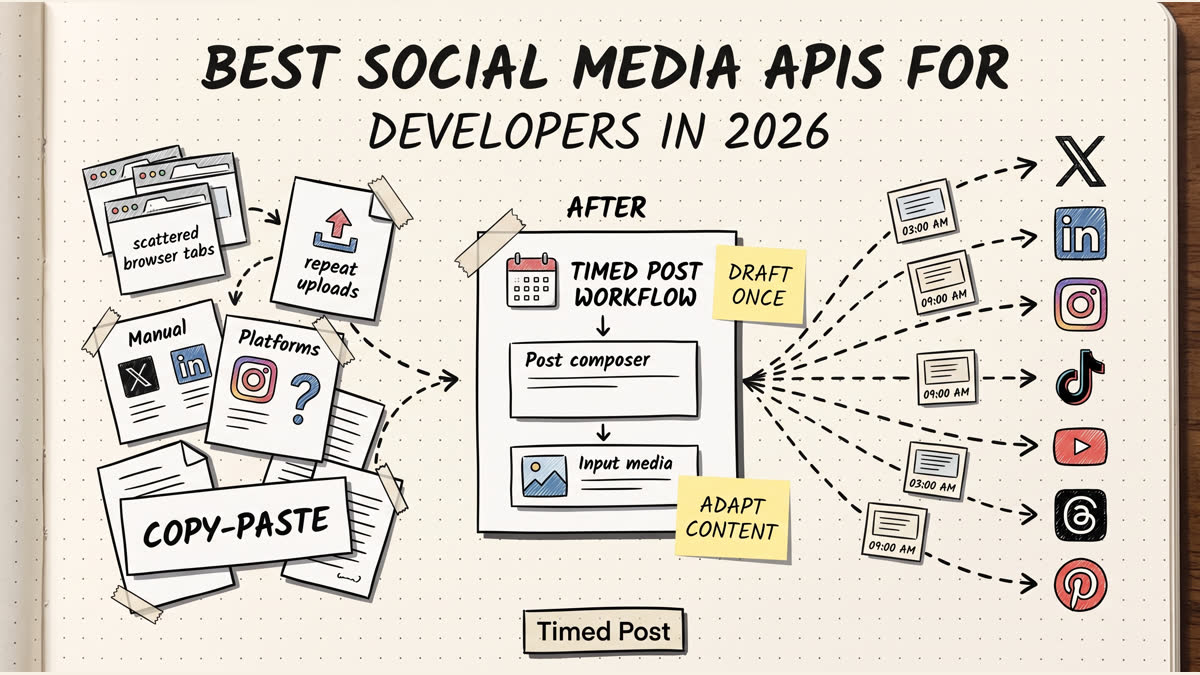
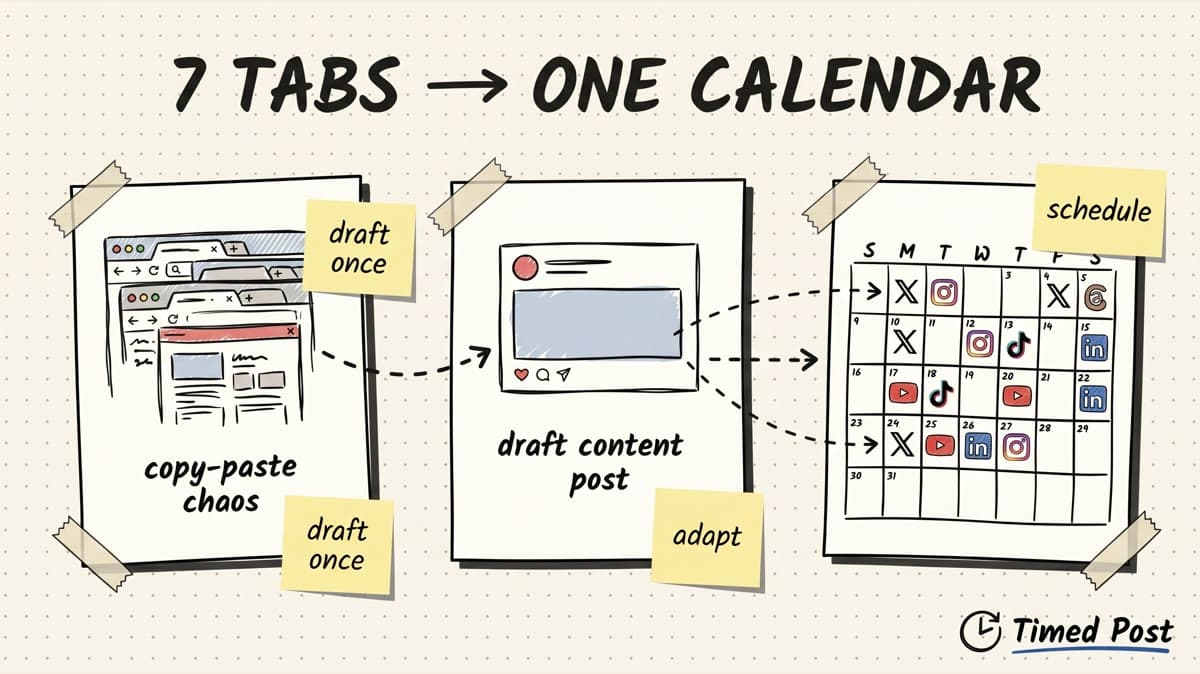
If your current “social media workflow” is opening seven tabs and pasting the same post into each one, you do not have a workflow.
You have a manual tax.
It usually looks like this:
- Write a post in Notion, Google Docs, or your notes app.
- Copy it into X.
- Rewrite it for LinkedIn.
- Upload the same video to TikTok.
- Upload it again to Instagram.
- Upload it again to YouTube Shorts.
- Check if the caption still fits.
- Forget whether Pinterest or Threads got scheduled.
- Come back tomorrow and repeat the same mess.
That is the part most scheduling guides skip.
The hard part is not clicking “schedule.” The hard part is turning one content idea into platform-native posts without losing track of what is going where.
This guide shows a cleaner way to schedule posts to multiple social media platforms at once, what to watch out for, and how to build the workflow inside a tool like Timed Post. If you want the broader tool comparison first, read our best multi-platform social media scheduler guide.
Quick answer
The best way to schedule posts to multiple social media platforms at once is to use one central scheduler where you can:
- create one base post
- select the platforms/accounts you want to publish to
- customize the caption for each platform
- upload images or videos once
- preview the post before it goes live
- place everything on a shared calendar
- reschedule or bulk schedule without reopening every native app
Timed Post is built around that exact flow: create the post, choose platforms, add media, preview, then publish now, schedule, save as draft, or bulk schedule from one dashboard. If you are mostly batching posts in advance, the bulk scheduling workflow is the natural next read.
The wrong way: one caption copied everywhere
A lot of people hear “schedule everywhere” and think it means “post the exact same caption everywhere.”
That is faster, but it is not always better.
A post that works on LinkedIn can feel too long on X. A post that works on X can feel too text-heavy on Instagram. A YouTube Shorts title needs search clarity. A TikTok caption can be shorter and more casual. Pinterest often needs a more searchable angle.
The better model is:
Same idea. Different packaging.
Example base idea:
“Most creators do not need to post more. They need to stop rebuilding the same post inside every app.”
That can become:
| Platform | Better version |
|---|---|
| X | short founder-style post about copy-paste hell |
| slightly longer workflow lesson | |
| caption attached to a carousel or reel | |
| TikTok | short caption for the video hook |
| YouTube Shorts | title + description built around search |
| searchable title like “Multi-platform content calendar workflow” | |
| Threads | casual conversation starter |
The mistake is treating all platforms as identical text boxes. For a deeper strategy breakdown, see the multi-platform posting strategy guide.
A good multi-platform scheduler should save you from repeated manual work without forcing lazy reposting.
The workflow that actually works
Here is the simplest workflow that does not break once you publish on more than two channels.
Step 1: Start with one source idea
Do not start inside X, LinkedIn, Instagram, or TikTok.
Start with the idea.
For example:
- “How I plan one week of content in 30 minutes”
- “What changed after posting on 5 platforms instead of 1”
- “The mistake creators make when repurposing videos”
- “Why our agency stopped scheduling posts from native apps”
The source idea should answer one question:
What is this post really about?
Once that is clear, the platform versions become easier.
Schedule your posts across every platform
Draft once, publish everywhere — automatically.
No credit card · Cancel anytime
Step 2: Create the base post
Write the base post first. Not the final post for every platform — the base version.
This is the raw material.
A strong base post usually has:
- one hook
- one point
- one example
- one CTA or question
For a product-led post, it might be:
“Posting across platforms manually is not hard once. It is hard when you do it every day. The real cost is switching context, uploading the same file repeatedly, and tracking what is scheduled where.”
From there, you can adapt it.
Step 3: Choose platforms before rewriting captions
Most people rewrite first and choose platforms later.
Flip it.
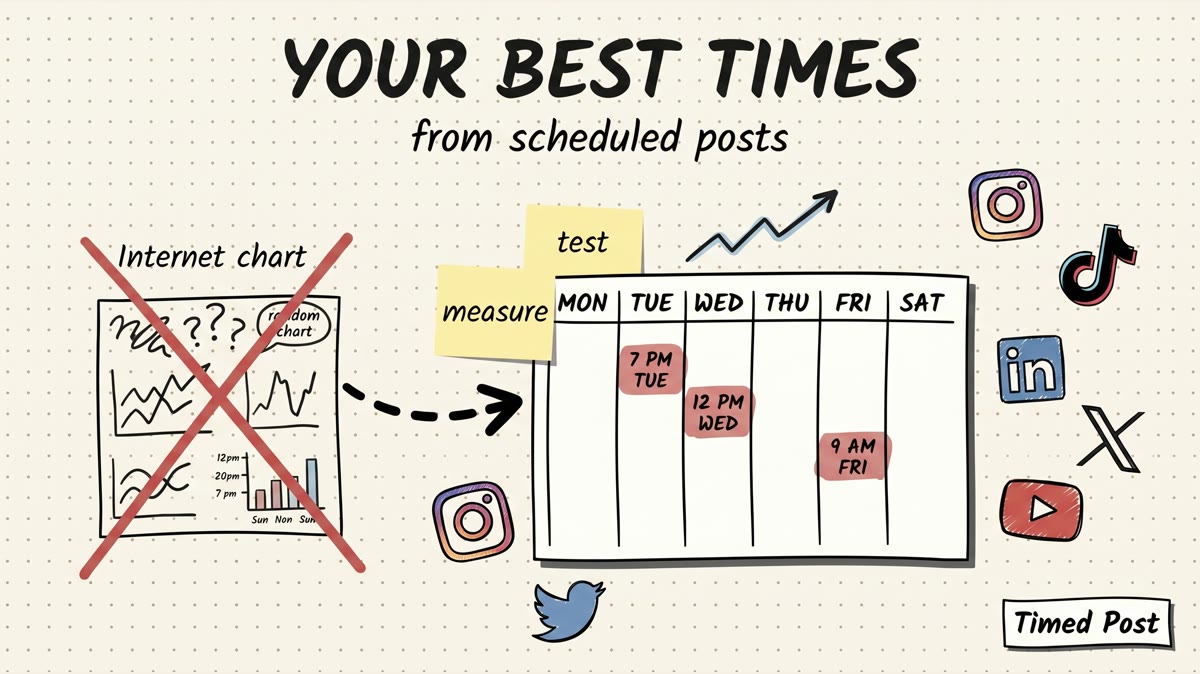
Choose the platforms first. If you are still deciding which channels deserve weekly attention, the best times to post on social media guide can help you avoid random scheduling.
In Timed Post, the composer lets you choose where the post should go before you finish the scheduling flow. The homepage demo shows the “Publish To” area with platform buttons, plus actions for Publish Now, Schedule, Save Draft, and Bulk.
That matters because the platform choice changes the post.
If you are publishing to X and LinkedIn only, you can focus on text. For LinkedIn-heavy workflows, compare the options in our LinkedIn scheduling tools guide.
If you are publishing to TikTok, YouTube, and Instagram, media and hook timing matter more. For TikTok-specific scheduling, read the best TikTok scheduling tools breakdown.
If you are publishing to Pinterest, search wording matters more.
Step 4: Customize the post for each platform
This is the part you should not skip.
Here are practical adaptation rules:
| Platform | Adaptation rule |
|---|---|
| X | Cut the intro. Lead with the strongest sentence. Make it easy to reply. |
| Add context and a concrete lesson. Avoid sounding like a corporate announcement. | |
| Make the caption support the visual. Do not rely on text alone. | |
| TikTok | Treat the video hook as the post. Caption is secondary. |
| YouTube Shorts | Use a clear title/search angle. The first line matters. |
| Threads | Keep it conversational. Ask something people can answer fast. |
| Use searchable wording. Think “idea discovery,” not only social feed. | |
| Add context if posting to pages/groups where the audience is broader. |
The point is not to create eight completely different posts.
The point is to avoid the “same caption everywhere” problem while still moving fast.
Step 5: Upload media once, then reuse it intelligently
For video creators, this is where scheduling tools become worth it.
Manual workflow:
- upload video to TikTok
- upload video to Instagram
- upload video to YouTube Shorts
- upload video to LinkedIn
- upload video to Facebook
- check whether each one processed
- hope you did not pick the wrong file
Better workflow:
- upload the media once
- attach it to the selected platforms
- adjust captions/titles where needed
- review previews
- schedule from one calendar
Timed Post’s composer is designed around this: caption, media upload, platform selection, preview, then publish/schedule/draft/bulk options. The live demo also mentions bulk creation with up to 50 files, which is useful if you batch short-form videos.
That does not mean every platform has the same media rules. You still need to check aspect ratio, duration, file size, and caption limits. If Instagram is one of your main channels, keep the Instagram video length limits guide open while batching clips.
But it removes the dumbest part: uploading the same asset over and over.
Step 6: Put everything on one calendar
A content calendar is not just for planning.
It is how you stop guessing.
When everything lives in native platform drafts, you cannot answer basic questions:
- What is going live tomorrow?
- Did we schedule LinkedIn but forget X?
- Which client workspace is this post for?
- Are we posting too much on one day and nothing the next?
- Which posts are still drafts?
Timed Post includes a content calendar with drag-and-drop rescheduling on paid plans. That matters because the schedule always changes. A launch gets delayed. A client asks for a revision. A post needs to move from Tuesday to Thursday. If this is the exact mess you are trying to fix, read our guide on social media workflows that cut workload in half.
If your calendar cannot change fast, you will go back to spreadsheets.
Step 7: Review before scheduling
Automation can multiply mistakes.
Before scheduling a post across multiple platforms, check:
- correct accounts selected
- correct workspace or brand selected
- platform-specific caption is not cut off
- media is attached
- links work
- date/time is correct
- the post still makes sense on each platform
This is especially important for agencies and freelancers. If you are managing client work, the manage 10 client accounts in 5 hours/week workflow is more relevant than a generic creator setup.
A wrong caption on your own account is annoying.
A wrong caption on a client account is a problem.
Manual scheduling vs native schedulers vs multi-platform schedulers
Here is the real tradeoff.
| Option | Good for | Breaks when | Best next step |
|---|---|---|---|
| Native app scheduling | 1-2 platforms | You publish on 3+ platforms or manage multiple accounts | Move to a central calendar |
| Spreadsheet + reminders | Planning ideas | You still have to publish manually | Add a scheduler |
| Generic all-in-one scheduler | Teams that need many features | It becomes expensive or too heavy | Choose based on workflow, not logo |
| Timed Post | Creators, founders, agencies, and small teams posting across platforms | You need enterprise governance or very deep analytics | Use it for draft → adapt → schedule workflow |
The question is not “what is the biggest social media tool?”
The question is:
Where does your workflow actually leak time?
If the leak is copy-paste, repeated uploads, scattered drafts, and no calendar, you want a multi-platform scheduler. If the bigger pain is juggling several brands/accounts, start with how to manage multiple social media accounts.
Where Timed Post fits
Timed Post is not trying to be a giant enterprise social suite.
It is built for the workflow most creators, founders, agencies, and social media managers actually have:
- connect multiple platforms
- draft posts
- upload media
- preview content
- schedule from one calendar
- manage brands/workspaces
- bulk schedule when batching content
- use analytics to see what is working
Live pricing currently starts with:
- Starter: $19/month for solo creators and freelancers
- Growth: $49/month for creators and growing teams
- Premium: early-bird $49/month for agencies and power users
The important product promise is simple:
Draft once. Publish everywhere. Automatically.
But the better way to understand it is this:
Timed Post helps you turn one content idea into a scheduled multi-platform workflow without rebuilding the post inside every app.
Example: turning one video into five scheduled posts
Let’s say you recorded a 35-second vertical video explaining a new product feature.
Without a scheduler:
- Upload to TikTok.
- Write caption.
- Upload to Instagram Reels.
- Rewrite caption.
- Upload to YouTube Shorts.
- Write title and description.
- Upload to LinkedIn.
- Rewrite caption with more context.
- Post a short version on X.
- Hope you remember what went live.
With a multi-platform workflow:
- Create one post in your scheduler.
- Upload the video once.
- Select TikTok, Instagram, YouTube, LinkedIn, and X.
- Write the base caption.
- Adjust each platform version.
- Choose times.
- Review previews.
- Schedule.
The content did not magically become better.
But the workflow became manageable.
That is the real win.
Example: planning one week of founder content
If you are a founder building in public, a weekly batch might look like this:
| Day | Base idea | Platforms |
|---|---|---|
| Monday | What shipped this week | X, LinkedIn, Threads |
| Tuesday | 30-second product demo | TikTok, YouTube Shorts, Instagram, LinkedIn |
| Wednesday | Pain point post | X, LinkedIn |
| Thursday | Customer/onboarding lesson | LinkedIn, X |
| Friday | Feature walkthrough | YouTube Shorts, TikTok, Instagram |
The bad version is manually posting each one when you remember.
The better version is batching the ideas, adapting the captions, and scheduling the week in one session. For solopreneur-specific tool choices, see our social media schedulers for solopreneurs guide.
That is how consistency becomes easier.
Not easy. Easier.
Example: managing client content
For agencies or freelancers, the problem is not only platforms. It is brands.
You might have:
- 3 clients
- 4 platforms per client
- 3 posts per week per platform
That becomes 36 publishing actions per week before you even count revisions, approvals, or analytics.
This is where workspaces matter.
A workspace lets you separate each client or brand so you are not mixing accounts, assets, drafts, and calendars.
If you manage client content manually from native apps, you are relying on memory. That works until it does not.
What to check before choosing a scheduler
Before picking a tool, ask these questions:
- Which platforms do I actually post on every week?
- Do I need video scheduling or mostly text/image scheduling?
- Do I manage one brand or multiple workspaces?
- Do I need bulk upload?
- Do I need team approvals?
- Do I need analytics, or only scheduling?
- Do I want a simple calendar or a full enterprise system?
For many creators and small teams, the answer is not “more features.”
The answer is fewer repeated tasks.
A simple multi-platform scheduling checklist
Use this before scheduling a batch. If you are trying to recover hours every week, pair this with the save 15 hours managing multiple accounts playbook:
- Base idea is clear
- Platforms selected
- Caption adapted per platform
- Media uploaded once and attached correctly
- Video/title requirements checked
- Links tested
- Calendar reviewed
- Drafts saved if not ready
- Publish times checked
- Replies/comments planned after posting
That last point matters.
Scheduling is not distribution by itself.
A scheduled post still needs engagement after it goes live. If you post and disappear, you are only automating half the job.
Common mistakes
Mistake 1: scheduling everywhere without adapting anything
This is the fastest way to make every platform feel like an afterthought.
Use one idea. Adapt the format.
Mistake 2: using a spreadsheet as a scheduler
A spreadsheet can help plan content. It cannot publish, preview, or confirm anything.
If your spreadsheet still ends with “now go post manually,” the workflow is incomplete.
Mistake 3: adding platforms before fixing the workflow
More platforms can mean more reach.
They can also mean more chaos.
Fix the workflow first. Then expand.
Mistake 4: not reviewing client or brand context
If you manage multiple brands, always check the workspace and account before scheduling.
One wrong account selection can create a bigger problem than the time you saved.
Mistake 5: ignoring analytics
The goal is not to publish everywhere forever.
The goal is to learn where each type of content performs best.
If short demos perform well on YouTube Shorts and TikTok but founder notes work better on X and LinkedIn, your schedule should reflect that. You can also use simple tools like the AI LinkedIn post generator or LinkedIn text formatter to speed up platform-specific polishing before scheduling.
Recommended workflow inside Timed Post
Here is the practical Timed Post workflow:
- Open the dashboard.
- Click New Post.
- Choose the platforms in “Publish To.”
- Write the base caption.
- Upload image or video media.
- Use previews to check how the post will look.
- Adjust platform-specific wording where needed.
- Choose Publish Now, Schedule, Save Draft, or Bulk.
- Review the calendar.
- Move posts if the week changes.
For batch creation, use the bulk workflow when you already have multiple assets ready. For platform-specific setup, you may also want the Instagram scheduling guide and Facebook scheduling guide.
For agencies, separate client work into workspaces so accounts and drafts do not get mixed.
For creators, use drafts to capture ideas before they are ready to schedule.
FAQ
Can I schedule posts to multiple platforms at the same time?
Yes. A multi-platform scheduler lets you create one post, select multiple social accounts, and schedule everything from one dashboard. The best workflow still lets you customize each platform version before publishing.
Should I post the same caption on every platform?
Usually no. Use the same core idea, but adjust the hook, caption length, title, hashtags, and CTA based on the platform. This keeps the workflow fast without making every post feel copied.
What platforms should a scheduler support?
It depends on your workflow, but most creators and teams want support for X, Instagram, LinkedIn, Facebook, TikTok, YouTube, Threads, and Pinterest. Timed Post is built around those 8 platforms.
Is bulk scheduling useful?
Bulk scheduling is useful if you batch content. For example, short-form video creators can prepare a week of clips, upload them in one session, and schedule them across multiple platforms instead of uploading one by one every day.
Can agencies use a multi-platform scheduler?
Yes. Agencies should look for workspaces, multiple social accounts, content calendars, team features, approvals, and analytics. The main benefit is reducing the risk of missed posts or mixed-up client accounts.
Does scheduling replace engagement?
No. Scheduling handles publishing. You still need to reply to comments, watch performance, and adjust your content based on what works.
Final verdict
If you want to schedule posts to multiple social media platforms at once, do not start by looking for the tool with the longest feature list.
Start with the workflow you want to stop doing manually.
If your pain is seven tabs, repeated uploads, scattered drafts, wrong captions, and no clear calendar, you need one system for drafting, adapting, scheduling, and reviewing posts.
That is what Timed Post is built for.
Draft once. Adapt per platform. Schedule everywhere.
And then use the time you saved for the part automation cannot replace: making better content and talking to the people who respond.