Managing one social media account is time-consuming. Managing five is chaos without the right system.
Agency marketers, freelancers, and multi-brand founders face a specific problem: client A's Instagram post goes live while you're drafting client B's LinkedIn content. You forget which account you're logged into. You accidentally post client work to your personal brand. By the time you've juggled five accounts across four platforms, half your day is gone.
The manual workflow doesn't scale. Logging in and out of accounts, switching between platforms, tracking which content goes where — it burns hours and creates mistakes.
This guide breaks down the exact system to manage 5+ social media accounts efficiently: workspace separation, content calendars, approval workflows, and automation that keeps everything organized without constant oversight.
The Core Problem: Context Switching Kills Productivity
Every time you switch between accounts or platforms, you lose 2-5 minutes to navigation and context reorientation.
The daily cost:
- Switch between 5 client accounts × 4 times/day = 20 switches
- 20 switches × 3 minutes = 60 minutes lost to navigation
That's 5 hours per week just logging in and out.
The mistake cost:
- Posting to the wrong account
- Mixing up client brand voices
- Missing deadlines because you forgot which account needed content
These errors cost credibility and client relationships.
The Solution: Centralized Multi-Account Management
The right tool puts all accounts in one dashboard with workspace separation, unified calendars, and account-switching that takes one click instead of five logins.
What centralized management solves
1. Account switching: One click changes accounts. No logging out, no password entry.
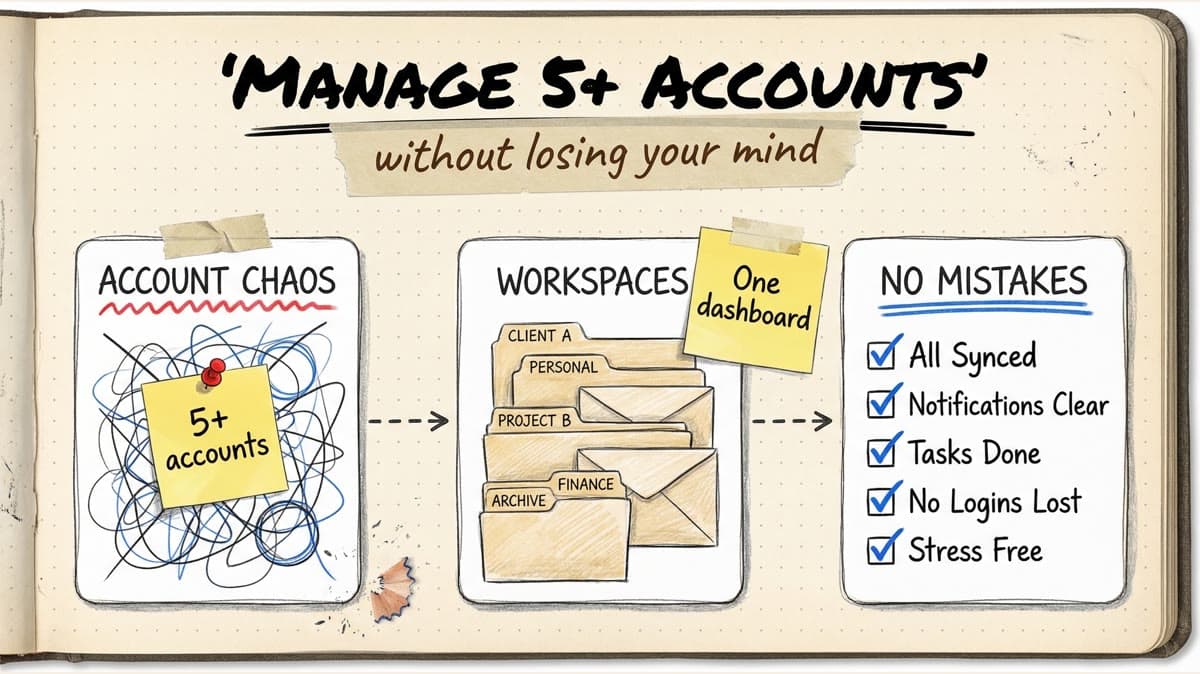
2. Workspace separation: Group accounts by client or brand. Client A's content stays in Workspace A. No cross-contamination.
3. Unified calendar: See all posts across all accounts in one view. Spot gaps, balance posting frequency, and prevent scheduling conflicts.
4. Bulk workflows: Upload content once, schedule across multiple accounts in one session.
5. Team collaboration: Assign accounts to team members, set permissions, and track who's working on what.
Best Tools for Managing Multiple Accounts
1. Timed Post — Best for agencies and multi-brand managers
Timed Post is built for managing many accounts. Workspace separation keeps client content isolated. Bulk scheduling helps you batch posts across connected accounts in one session. Unlimited team members (on Premium) let you assign accounts to specific people without per-user fees.
Platform support: Instagram, Facebook, TikTok, X, LinkedIn, YouTube, Threads, Pinterest
Key features:
- Workspaces (separate clients/brands)
- Bulk scheduling (20 posts at once)
- Approval workflows (Premium)
- Unlimited team members (Premium)
- Platform-specific previews
- AI caption generator
- Analytics across all accounts
Pricing:
- Starter: $19/month (5 accounts)
- Growth: $49/month (15 accounts)
- Premium: $49/month early bird / $79/month normal (unlimited accounts and unlimited team)
Best for: Agencies managing 5+ client accounts with team collaboration.
2. Hootsuite — Best for enterprise teams
Hootsuite supports 10+ platforms with team permissions, approval workflows, and social listening.
Pricing: $249/user/month (10 accounts) | $499/user/month (unlimited accounts)
Best for: Enterprise teams with budget for per-user pricing.
Limitation: Expensive. A team of 3 costs $747/month on Standard.
3. Agorapulse — Best for unified inbox management
Agorapulse excels at inbox management across accounts. See comments, messages, and mentions from all accounts in one unified inbox.
Pricing: $99/user/month (10 profiles) | $149/user/month (10 profiles + advanced features)
Best for: Teams prioritizing community management and inbox workflows.
Limitation: Per-user pricing. 10-profile limit on all plans.
4. Sendible — Best for agency white-label reporting
Sendible offers client-specific dashboards and white-label reports for agencies.
Pricing: $89/month (24 profiles) | $199/month (49 profiles)
Best for: Agencies needing white-label client reports.
Limitation: Basic analytics. UI feels dated.
5. SocialPilot — Best budget option
SocialPilot offers the most accounts per dollar.
Pricing: $50/month (15 accounts) | $100/month (25 accounts) | $200/month (50 accounts, unlimited users)
Best for: Budget-conscious agencies managing many accounts.
Limitation: Basic features. Less polished than competitors.
The Multi-Account Management System
Here's the exact workflow to manage 5+ accounts efficiently.
Step 1: Organize accounts into workspaces
Group accounts by client, brand, or category.
Example structure:
- Workspace 1: Your personal brand (Instagram, LinkedIn, X)
- Workspace 2: Client A (Instagram, Facebook)
- Workspace 3: Client B (LinkedIn, X)
- Workspace 4: Client C (TikTok, Instagram, YouTube)
Why workspaces matter:
- Prevent posting to the wrong account
- Keep content calendars separate
- Assign team members to specific workspaces
- Track performance per client
Step 2: Set up a content calendar per workspace
Each workspace needs a calendar showing:
- Scheduled posts
- Draft content
- Gaps in posting schedule
Calendar rules:
- Color-code by platform (Instagram = purple, LinkedIn = blue, etc.)
- Flag posts awaiting approval
- Show posting frequency (daily, 3×/week, etc.)
Pro tip: Use a unified calendar view to see all workspaces at once. Spot imbalances (Client A has 20 posts scheduled, Client B has 2).
Step 3: Batch content creation by workspace
Don't jump between clients randomly. Dedicate focused blocks to one workspace at a time.
Monday workflow example:
- 9-10am: Create content for Workspace 1 (personal brand)
- 10-11:30am: Create content for Workspace 2 (Client A)
- 11:30am-1pm: Create content for Workspace 3 (Client B)
Why batching by workspace works:
- You stay in one brand voice per session
- Reduces context switching
- Easier to maintain visual consistency
Step 4: Implement approval workflows
For client accounts, approval workflows prevent posting without review.
The approval flow:
- Create posts and mark as "Pending Approval"
- Client reviews posts in their workspace
- Client approves or requests edits
- Approved posts move to "Scheduled"
Tools with approval workflows: Timed Post (Premium), Hootsuite, Agorapulse, Sendible
Why this matters: Clients see drafts before they go live. No surprises, no emergency takedowns.
Step 5: Automate analytics reporting
Manually pulling analytics for 5 accounts across 4 platforms takes hours. Automate it.
What to track per account:
- Follower growth
- Engagement rate
- Top-performing posts
- Posting frequency vs. performance
Reporting frequency:
- Weekly: Quick engagement check
- Monthly: Full performance review with client
Pro tip: Use white-label reports if you're an agency. Add your branding, remove the tool's logo, and deliver professional client reports.
Step 6: Assign team members to accounts
If you have a team, assign people to specific accounts or workspaces.
Example assignments:
- Designer A: Handles all Instagram content
- Writer B: Handles all LinkedIn content
- Manager C: Reviews and approves all posts
Tools with team permissions: Timed Post (Premium), Hootsuite, Agorapulse, Sendible
Why this matters: Everyone knows what they're responsible for. No duplicate work, no forgotten accounts.
Timed Post
Schedule your posts across every platform
Draft once, publish everywhere — automatically.
No credit card · Cancel anytime
Timed Post
Schedule your posts across every platform
Draft once, publish everywhere — automatically.
No credit card · Cancel anytime
Schedule your posts across every platform
Draft once, publish everywhere — automatically.
No credit card · Cancel anytime
Multi-Account Workflows (Real Examples)
Workflow 1: Agency Managing 10 Client Accounts
Team: 1 manager + 2 content creators
Setup:
- 10 workspaces (one per client)
- Each workspace has 2-4 connected accounts (Instagram, Facebook, LinkedIn)
- Manager has admin access to all workspaces
- Content creators assigned to specific clients
Weekly workflow:
- Monday: Manager assigns content tasks per client
- Tuesday-Thursday: Content creators batch-create posts in assigned workspaces
- Friday: Clients review and approve posts
- Weekend: Scheduler publishes approved posts
Time investment: 15 hours/week for 10 clients (vs. 40+ hours manually managing accounts).
Workflow 2: Multi-Brand Founder Managing 3 Businesses
Brands: E-commerce store + SaaS product + personal brand
Setup:
- 3 workspaces
- E-commerce: Instagram + Facebook + Pinterest
- SaaS: LinkedIn + X + YouTube
- Personal: Instagram + LinkedIn + X
Weekly workflow:
- Sunday: Batch-create 7 posts per brand (21 total posts)
- Bulk upload to each workspace
- Customize captions per platform
- Schedule across the week
- Check analytics Friday to refine next week's strategy
Time investment: 3 hours/week (vs. 10+ hours posting manually).
Workflow 3: Freelancer Managing 5 Client Instagram Accounts
Setup:
- 5 workspaces (one per client)
- Instagram only
Weekly workflow:
- Monday: Create 7 Instagram posts per client (35 total)
- Bulk upload to each workspace
- Write captions using AI assist
- Send approval links to clients
- Clients approve by Wednesday
- Schedule approved posts for the week
Time investment: 8 hours/week for 5 clients (vs. 20+ hours manually).
Common Multi-Account Mistakes
1. Not using workspaces
Managing 10 accounts in one calendar creates confusion. You forget which account needs content, mix up brand voices, and post to the wrong account.
Fix: Create one workspace per client or brand.
2. Posting to the wrong account
The #1 mistake: drafting a post for Client A and accidentally publishing to Client B.
Fix: Use a scheduler that color-codes accounts or shows account names prominently before posting.
3. Forgetting which account you're logged into
When manually managing accounts, you log into Client A's Instagram, post content, then realize you're still logged in when you meant to post to Client B.
Fix: Use a scheduler. You never log into accounts manually.
4. Mixing up content calendars
You schedule 10 posts for Client A this week and forget Client B has nothing scheduled.
Fix: Use a unified calendar view to see all accounts at once.
5. No approval process
You post client content without review. The client sees it live and requests changes. Now you're editing or deleting published posts.
Fix: Implement approval workflows. Clients review before posts go live.
6. Tracking analytics manually
Logging into Instagram Insights for 5 accounts, copying metrics, pasting into spreadsheets — this takes hours.
Fix: Use a scheduler with unified analytics. One dashboard shows all accounts.
Team Collaboration Best Practices
If you have a team managing multiple accounts, follow these rules:
1. Assign accounts or workspaces to specific people
Don't have everyone working on everything. Assign ownership.
Example:
- Designer A: Client 1 + Client 2
- Writer B: Client 3 + Client 4
- Manager C: Approves all posts
2. Use approval workflows
No one publishes without manager review. This prevents brand voice inconsistencies and mistakes.
3. Set posting permissions per user
Roles:
- Admin: Full access, can publish and delete
- Creator: Can create and schedule, but can't publish without approval
- Viewer: Read-only access to analytics and calendar
4. Communicate via comments
Most schedulers let team members comment on posts. Use this instead of Slack or email.
Example: Designer creates a post, tags Writer for caption review. Writer comments with edits. Designer updates and submits for approval.
5. Track task completion
Use project management features (if available) to track:
- Posts created
- Posts pending approval
- Posts scheduled
- Posts published
Analytics: What to Track Across Accounts
When managing multiple accounts, you need to compare performance.
Key metrics per account
Follower growth:
- Which accounts are growing fastest?
- Are any accounts losing followers?
Engagement rate:
- Which accounts have the highest engagement?
- Are any accounts underperforming?
Content type performance:
- Do carousels work better on Client A's Instagram?
- Do video posts perform better on Client B's LinkedIn?
Posting frequency vs. performance:
- Does posting 5×/week on Account A perform better than 3×/week on Account B?
Cross-account insights
Compare performance across accounts to find patterns:
Example insights:
- Client A's Instagram engagement is 2x higher than Client B's → investigate what's different (content type, posting time, hashtags)
- Personal brand LinkedIn posts at 8am get 3x more reach than posts at 2pm → apply this to client accounts
Time-Saving Automation Hacks
1. Reuse evergreen content across accounts
If you manage 5 fitness coaches' Instagram accounts, create one library of workout tips. Customize captions per brand, but reuse core content.
Time saved: 50% content creation time.
2. Use AI to generate captions
Write one base caption with AI, then customize per brand voice.
Time saved: 5 minutes per caption × 20 posts/week = 100 minutes/week.
3. Set posting schedules per account
Define posting rhythms per account:
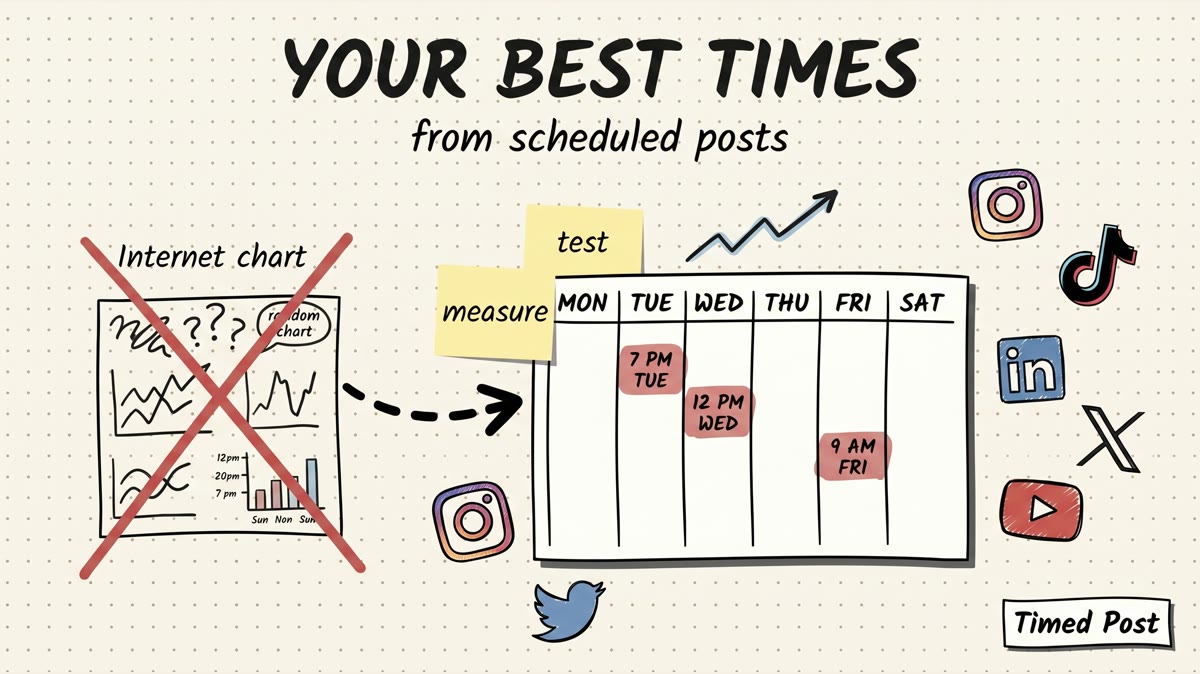
- Client A: Monday, Wednesday, Friday at 7pm
- Client B: Daily at 9am
- Client C: Tuesday, Thursday at 6pm
Once defined, you just fill the calendar slots. No more deciding "when should this post go live?"
4. Bulk schedule similar content
If 3 clients are in the same industry (e.g., all real estate agents), batch-create content themes and customize per brand.
Example: Create 10 "market update" posts. Customize stats and branding per client. Upload all 30 posts (10 × 3 clients) in one session.
Time saved: 3 hours per batch.
5. Clone high-performing posts across accounts
If a post performs well on Client A's account, clone it to Client B's account with minor customization.
Example: "5 home staging tips" performs well for Client A (realtor). Clone the post for Client B (also a realtor), update branding, and schedule.
FAQ
How many accounts can I manage with one tool?
Depends on the plan:
- Timed Post Starter: 5 accounts
- Timed Post Growth: 15 accounts
- Timed Post Premium: unlimited accounts
- SocialPilot Ultimate: 50 accounts
- Hootsuite Advanced: Unlimited
Can I manage both personal and client accounts in one tool?
Yes. Use workspaces to separate them. Your personal brand gets Workspace 1, clients get separate workspaces.
What if a client wants to review posts before they go live?
Use approval workflows. The client logs in (viewer or approver role), reviews posts, and approves or requests edits. Nothing publishes without their okay.
Can I give clients access to their workspace without showing other clients' content?
Yes. Most tools let you restrict access per workspace. Client A only sees Workspace A. Client B only sees Workspace B.
Do I need to log into each account manually?
No. The scheduler connects via API. You authenticate once, and the tool handles posting. You never log into Instagram, Facebook, etc. directly.
Can I track which team member created which post?
Yes. Most collaboration tools track:
- Who created the post
- Who edited it
- Who approved it
- When it was published
Final Thoughts
Managing 5+ social media accounts manually is unsustainable. The login switching, context fragmentation, and mistake risk burn hours and credibility.
The right system solves this:
- Workspace separation prevents cross-contamination
- Bulk workflows turn 10 hours of posting into 2 hours
- Approval workflows keep clients in the loop
- Team collaboration distributes work efficiently
- Unified analytics show performance at a glance
Tools that do this well:
- Timed Post: Best value for agencies that need flat pricing, workspaces, and Premium unlimited accounts/team members
- Hootsuite: Best for enterprise with big budgets
- SocialPilot: Best for budget agencies (50 accounts for $200/month)
Bottom line: If you're managing 5+ accounts and not using a centralized scheduler, you're working 3-5× harder than you need to.
Try Timed Post free for 7 days and see how much time workspace separation saves.