You want to know who is actually sticking around.
Views are nice, but subscribers tell you something different: a viewer saw enough value to ask for more. The frustrating part is that YouTube splits subscriber information across different places. Your public channel page shows one thing. YouTube Studio shows another. The recent subscriber list has its own rules.
If you are only checking the number, this is quick. If you want names, growth trends, and which videos are turning viewers into subscribers, you need to use the right part of YouTube Studio.
quick answer
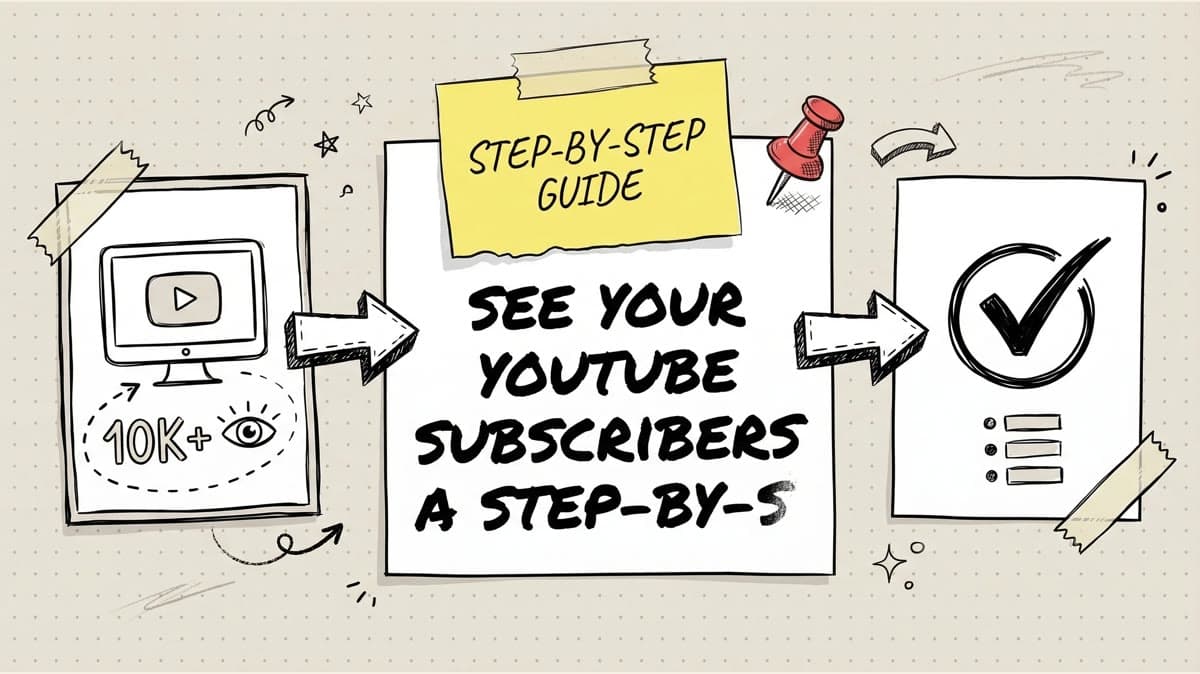
To see your YouTube subscribers, open YouTube Studio and check Analytics for your subscriber count and growth over time. YouTube's help page for checking your subscriber count points creators to the Analytics overview and live count view.
If you want subscriber names, use the Recent subscribers card on the YouTube Studio dashboard. YouTube's recent subscribers help page notes an important limit: not every subscriber appears there. Subscribers may be missing if they keep subscriptions private, if the account is suspended, or if YouTube identifies it as spam.
Use this shortcut:
| What you want | Where to look | What you get |
|---|---|---|
| Current subscriber number | YouTube Studio > Analytics > Overview | Your current count and live count view |
| Recent subscriber names | YouTube Studio dashboard > Recent subscribers | Visible subscribers who meet YouTube's display rules |
| Subscriber growth trend | YouTube Studio > Analytics | Gained/lost subscribers over a selected period |
| Content impact | YouTube Studio analytics tabs | Which videos, Shorts, and traffic patterns are tied to growth |
where YouTube shows subscriber data
YouTube subscriber data is not one screen. Think of it as three jobs.
1. Count: how many subscribers your channel has right now.
2. List: which recent subscribers YouTube is allowed to show you.
3. Pattern: whether your content is gaining subscribers, losing them, or converting viewers inconsistently.
For a quick check, the count is enough. For growth decisions, the pattern matters more. A channel can gain 200 subscribers from one video, lose 40 after another, and still look fine if you only glance at the total number.
YouTube's analytics docs explain the main analytics areas, including Overview, Content, Reach, Engagement, Audience, and Revenue. If you are new to the dashboard, start with YouTube's official guide to getting started with YouTube Analytics.
how to check your subscriber count
Use this when you only need the number.
- Sign in to YouTube.
- Click your profile image.
- Open YouTube Studio.
- Click Analytics in the left menu.
- Stay on the Overview tab.
- Find your subscriber count or the realtime subscriber card.
This is the cleanest place to check your own number because it is built for creators. Your public channel page may show a shortened version of your subscriber count depending on channel size, while Studio is where you go to manage the channel.
If you are checking subscribers after a new upload, do not judge the video from the count alone. Pair it with views, comments, watch time, and whether the video attracted the right kind of viewer. For YouTube-specific engagement checks, this guide to the YouTube dislike viewer problem explains why one engagement metric rarely tells the whole story.
how to see recent subscriber names
Use this when you want to know which people subscribed recently.
- Sign in to YouTube Studio.
- Open the Dashboard.
- Find the Recent subscribers card.
- Click See all to expand it.
- Adjust the timeframe if you want to review a different period.
The list may look smaller than expected. That does not always mean YouTube is broken.
YouTube says recent subscribers may not appear if:
- they chose to keep subscriptions private;
- their account is suspended;
- their account is identified as spam.
That is why subscriber names are useful, but incomplete. Do not use the visible list as a full customer database. Use it to spot patterns: creators in your niche, customers, active commenters, or repeat viewers who may be worth replying to.
If you turn YouTube videos into short clips, recent subscribers can also show whether your clips are attracting the same audience as the full video. This YouTube clipping guide can help you build clips that point back to the original upload instead of creating disconnected content.
Schedule your posts across every platform
Draft once, publish everywhere — automatically.
No credit card · Cancel anytime
how to use subscriber analytics without fooling yourself
The subscriber number is tempting because it is simple. Growth decisions need more context.
Look at these signals together:
- Subscribers gained: which videos or Shorts brought new people in.
- Subscribers lost: whether a topic, format, or posting pattern pushed people away.
- Returning viewers: whether people are coming back before they subscribe.
- Watch time and retention: whether viewers stay long enough to trust the channel.
- Traffic source: whether subscribers came from YouTube search, suggested videos, Shorts, external links, or social posts.
- Comments: whether the new audience understands what the channel is for.
A single video can create misleading subscriber movement. For example, a viral Short might add subscribers fast, but those subscribers may not watch your long-form videos. A slower tutorial might add fewer subscribers, but bring in people who fit the channel better.
Use this decision framework:
| Pattern | What it may mean | What to do |
|---|---|---|
| Views up, subscribers flat | The video entertained but did not create a reason to return | Add a clearer next-video promise |
| Subscribers up, watch time weak | The hook worked but the video may not hold attention | Fix pacing and structure |
| Subscribers down after one topic | The topic may not match your core audience | Decide whether it was a test or a pivot |
| Subscribers up from external posts | Promotion is working | Repeat the channel and format that brought them in |
| Subscribers up from search | The video solved a clear problem | Build a follow-up cluster |
The best creator habit is not checking subscribers every hour. It is checking what changed after each upload and writing down why you think it changed.
what to do if your subscriber count drops
A small drop is not automatically a content emergency. Some churn is normal. YouTube also removes accounts that are suspended or identified as spam, which can affect subscriber totals and visible subscriber lists.
Work through this checklist before making big changes:
- Did YouTube remove spam or suspended accounts? If the drop is small and there is no content pattern, this may be housekeeping.
- Did you publish outside your usual topic? A sharp pivot can cause subscribers to leave.
- Did the title overpromise? People unsubscribe when they feel tricked.
- Did you upload too frequently after a quiet period? A sudden flood can annoy dormant subscribers.
- Did a Short reach the wrong audience? Short-form reach can be wide but messy.
- Did comments mention a specific problem? Repeated complaints are more useful than the raw drop.
If the drop follows one video, study that video. If the drop follows several weeks, study the system: topics, schedule, thumbnails, intros, and promotion.
Timing can also affect how a new video starts. If you are trying to coordinate YouTube uploads with social promotion, use a posting window that fits your real audience instead of guessing. This guide on the best times to post on social media gives a practical starting point.
turn subscriber data into a content plan
Subscriber analytics should change what you publish next.
Try this simple weekly review:
- Pick the videos or Shorts that gained the most subscribers.
- Write down the topic, format, title style, and first 30 seconds.
- Pick the videos that lost subscribers or underperformed.
- Compare their promises against what they delivered.
- Plan one follow-up for the winner and one fix for the loser.
- Schedule the promo posts before the next upload goes live.
The final step matters because YouTube does not exist in a vacuum. A good video can still start slowly if you forget to tell your audience on X, Instagram, LinkedIn, Facebook, TikTok, Threads, or Pinterest. If you are manually copying the same announcement into every app, you are spending the first hour after upload on busywork instead of replying to comments and watching early signals.
Timed Post helps you batch that part. Draft the promo once, adapt it by platform, and schedule it across X, Instagram, LinkedIn, Facebook, TikTok, YouTube, Threads, and Pinterest from one calendar. If your channel has outgrown the copy-paste workflow, start with this guide on how to schedule posts to multiple social media platforms, then use the multi-platform posting guide to tighten the full system.
If you are comparing tools, this breakdown of the best multi-platform social media schedulers can help you choose a setup that fits the way you publish.
the subscriber metrics worth checking after each upload
You do not need a 20-tab spreadsheet. Keep it boring and repeatable.
After each upload, record:
- subscriber gain or loss after 24 hours;
- subscriber gain or loss after 7 days;
- top traffic source;
- average view duration or retention pattern;
- most repeated comment theme;
- whether the video deserves a follow-up;
- which social posts drove meaningful clicks or comments.
This turns subscriber checking into a decision tool. You are no longer asking, "Did the number go up?" You are asking, "What made the right people subscribe, and how do I do more of that?"
final take
You can see your YouTube subscriber count in YouTube Studio Analytics. You can see some recent subscriber names on the dashboard. You cannot see every subscriber by name because YouTube hides private, suspended, and spam accounts from that list.
Check the number, but do not stop there. The useful work is finding which videos create loyal viewers, then building a publishing and promotion rhythm that brings those viewers back.