Picture this: It's a Tuesday morning. You've spent the better part of your commute writing a LinkedIn post. It's got a real insight in it, something you learned the hard way after six months of testing a new sales approach. You hit "Post," slip your phone into your pocket, and head into the office feeling good.
By lunchtime, you check back. Four likes. Two of them are your colleagues who probably saw it in their feed by accident.
The next day, someone in your network posts almost the same idea. Same core argument, similar examples. But their version has bold headers breaking up each section, a clean bullet list, and breathing room between paragraphs. It's the kind of post that makes you slow down mid-scroll. By the end of the day, they've got 340 likes, 60 comments, and a thread full of people tagging their teams.
You're not imagining it. Formatting really does make that much difference.
Here's the thing most people don't know: LinkedIn doesn't make formatting obvious. There's no visible toolbar on the desktop web version. No "Bold" button you can just click. So most people post in plain walls of text and then wonder why engagement falls flat.
This guide covers everything you need to know about the LinkedIn text formatter, including bold, italic, line breaks, and bullet points. You'll also get the best practices that actually move the needle, the common mistakes that kill readability, and answers to the questions that come up most often.
LinkedIn text formatting isn't a design trick. It's a communication skill. And once you've got it down, your posts will look completely different from what you're posting now.
If the formatting part is easy but the idea is not, start from copyable LinkedIn post templates or use the LinkedIn post generator to generate a first draft, then bring it back here to clean up spacing, bold, and line breaks.
What Formatting Does (and Doesn't) Work on LinkedIn
Before getting into the how, it helps to know what you're working with. LinkedIn's formatting options are more limited than most people expect.
LinkedIn supports:
- Bold text
- Italic text
- Bold and italic combined
- Line breaks (hard returns with Shift+Enter)
- Bullet points using special characters
- Numbered lists
- Emojis
LinkedIn does NOT support:
- Colored text
- Underline
- Strikethrough
- Code blocks
- HTML or rich text from external editors
- Heading sizes (you fake it with bold)
That list of "nots" trips a lot of people up. If you're used to writing in Google Docs or Notion, you might instinctively try to underline something for emphasis, or use a strikethrough for a joke. Neither will show up. Stick to what works.
How to Format Text on LinkedIn (Step-by-Step)
There are a few different methods depending on whether you're on mobile or desktop. Mobile is honestly easier. Desktop requires keyboard shortcuts and a bit more patience.
Method 1: Format on Mobile (The Easiest Way)
The LinkedIn mobile app has a formatting toolbar built right in, which makes this the most beginner-friendly approach.
- Open the LinkedIn app on your phone
- Tap "Start a post"
- Type your post content
- Long-press on a word (or drag to select a section of text)
- A formatting menu will appear above the selection
- Tap Bold, Italic, or whichever option you need
- Continue writing or tap Post when you're done
The mobile toolbar is visible, responsive, and does exactly what you'd expect. If you're formatting-averse because desktop always feels fiddly, just draft and format on mobile instead.
Method 2: Format on Desktop (Web Version)
The desktop web editor doesn't show a toolbar. You're working with keyboard shortcuts, which takes a little getting used to but becomes second nature quickly.
Bold Text
- Type your text in the LinkedIn post composer
- Highlight the word or phrase you want bold
- Press Ctrl+B on Windows or Cmd+B on Mac
- The selected text turns bold immediately
Example: This is bold text
Italic Text
- Highlight the text you want in italics
- Press Ctrl+I on Windows or Cmd+I on Mac
- The text switches to italic
Example: This is italic text
Bold and Italic Together
If you want both at once (useful for pulling out a key stat or quote), highlight your text and press Ctrl+B followed by Ctrl+I (or the Mac equivalents).
Example: This is bold and italic
Line Breaks
This one is important and catches people off guard. In LinkedIn's composer:
- Press Enter to start a new paragraph (creates a blank line between blocks)
- Press Shift+Enter to start a new line within the same block (no extra spacing)
For posts that use lists or structured sections, you'll use Shift+Enter a lot. It's the main tool for controlling the visual rhythm of your post.
Method 3: Bullet Points and Lists
Bullet points are one of the highest-impact formatting choices you can make on LinkedIn. They break up dense text, make comparisons easy to read, and tell the reader at a glance: "this is a list, not a wall of prose."
LinkedIn doesn't have a native bullet point button on desktop, so you have to use characters.
On mobile:
- Create a new line with Shift+Enter
- Type or paste a bullet character: •
- Add a space, then your list item
- Repeat for each bullet
On desktop:
- Place your cursor at the start of a new line
- Paste • (copy it from here, or from Google)
- Add your list item text
- Shift+Enter to go to the next line
- Repeat
You can also use hyphens (-) as a quick stand-in for bullets. They're less visually polished than the bullet character, but they work fine.
Where to find bullet characters quickly:
- Copy the • symbol from this article
- Search "bullet point symbol" on Google and copy from there
- On Mac, press Option+8 to type a bullet directly
- Save a bullet character in your notes app so it's always ready to paste
Method 4: Numbered Lists
Numbered lists work the same way as bullets, but you type the numbers manually.
- First item
- Second item
- Third item
Type each number followed by a period, press Shift+Enter at the end of each line, and continue. LinkedIn won't auto-number them for you, so you're doing it by hand. Not a big deal, but worth knowing.
Best Practices for Formatting LinkedIn Posts
Knowing how to format is half the battle. Knowing when and how much to format is the other half. Here's what actually works.
Lead With Your Best Point
Most readers decide within the first two lines whether they'll click "see more" to expand a post. That means your opening has to carry the weight of the entire piece.
Don't warm up. Don't set context. Start with the most interesting, specific, or provocative thing you have to say.
Weak opening: I've been thinking about how we approach LinkedIn lately...
Strong opening: Formatted LinkedIn posts get 2-3x more engagement than plain text. Here's why most people still aren't doing it.
Put your headline claim first. Everything after that is proof.
Use Bold to Signal, Not Decorate
Bold text is a signal to the reader that says "this is important." When you bold too much, the signal breaks down. Nothing stands out when everything stands out.
Aim to bold:
- The main claim in each section
- Key stats or numbers
- Action items
Don't bold:
- Random adjectives or filler words
- Three words in a row that don't form a meaningful phrase
- Entire paragraphs
Bad use of bold: Regular exercise improves productivity. I started working out every morning and my focus improved.
Good use of bold: Regular exercise changes how your brain works. My focus increased by 40% after six weeks of consistent morning workouts.
Put Lists Where Lists Belong
Not every piece of content belongs in a bullet list. But when you have multiple items of equal weight, bullet them. It's faster to read and easier to remember.
As a paragraph: There are several reasons formatting improves performance: readers scan faster, posts look more professional, the visual structure shows effort, and people engage more with content they can actually get through.
As a list: Why formatting lifts your numbers:
- Readers scan faster
- Posts look more professional
- Visual structure signals effort
- People engage with content they can actually read
The list version communicates the same ideas in roughly half the reading time.
Create Visual Breathing Room
Tight walls of text feel exhausting before you even start reading them. Spacing makes a post feel approachable.
Use blank lines (press Enter twice, or Shift+Enter twice) between major sections. Use single Shift+Enters between lines in a list. Give your reader's eyes somewhere to rest.
Think of your post like a physical layout:
- Hook or opening statement
- One blank line
- First section or point
- One blank line
- Next section or point
- One blank line
- Call to action or closing line
That structure, even if the content is only moderately strong, reads 10x better than a single unbroken paragraph.
Use Subheadings for Longer Posts
LinkedIn's algorithm rewards longer posts (the sweet spot is 1,200 to 1,800 characters for feed posts, though article-length content works too). But longer posts need structure.
Bold subheadings act as signposts. A reader can scan your bold lines and decide which sections are worth slowing down for. That behavior, scanning and then reading, keeps them on your post longer. Time-on-post is a positive signal for reach.
Format your subheadings like this:
Why formatting matters [paragraph]
What most people do wrong [paragraph]
What to do instead [paragraph]
Clean, simple, scannable.
Use Emojis Deliberately
Emojis work on LinkedIn. The key word is "deliberately." A well-placed emoji at the start of a bullet point or section adds visual contrast without looking like a spam newsletter.
Good emoji use: 📊 Here's what three months of data showed... ✅ This approach works consistently ❌ This one almost never lands
Bad emoji use: 🚀🚀🚀 YOU WON'T BELIEVE THESE RESULTS 🚀🚀🚀
One or two relevant emojis per post is plenty. They should reinforce the content, not replace it.
Don't Format Comments Differently From Posts
A lot of people put effort into their posts but write throwaway comments. That's a missed opportunity. Formatted comments stand out in busy threads. You can bold text in comments using the same Ctrl+B shortcut, and you can use Shift+Enter for line breaks. A well-structured comment in a popular thread can drive as much profile traffic as a standalone post.
Common Formatting Mistakes on LinkedIn
Even people who know how to format make these errors. Worth checking your own habits.
Pasting From Word or Google Docs
If you write in another app and paste into LinkedIn, the formatting doesn't come with it. LinkedIn strips it. What looked great in your doc arrives as plain, unformatted text.
Always apply formatting directly in LinkedIn's composer, after pasting your content as plain text. Write first, format second.
Not Checking After You Post
The composer doesn't always show you exactly what the final post looks like. After you post, open the post in your feed and check it. Look for:
- Line breaks that got collapsed
- Bold that didn't apply
- Bullet characters that look off
If something's wrong, you can edit the post within a few minutes. Early edits don't hurt reach.
Over-Formatting
Using bold on every other sentence, alternating emojis, bullet pointing everything including thoughts that aren't actually list items... it reads like a scam ad. Real professionalism looks restrained. Less formatting, used precisely, is more persuasive than visual noise.
Ignoring Mobile Rendering
If you format on desktop, always check how it renders on your phone before posting. Some line break patterns collapse on mobile. Some bullet characters look different. The audience is reading on mobile more than desktop, so mobile rendering is what matters most.
Forgetting the Opening Line
You can have perfect formatting throughout the whole post, but if the first line is boring, nobody sees the rest. The first line is what shows in the feed before "see more" gets cut off. It has one job: make people tap.
Schedule your posts across every platform
Draft once, publish everywhere — automatically.
No credit card · Cancel anytime
LinkedIn Native Editor vs. Third-Party Scheduling Tools
There's a practical question that comes up often: is it better to format directly in LinkedIn or use a third-party tool?
Native LinkedIn Editor
- Pros: Direct, no lag, formats exactly as expected
- Cons: No scheduling, no templates, no cross-platform posting, easy to format and then lose your draft
Third-Party Tools (like Timed Post, Buffer, Hootsuite)
- Pros: Scheduling, post templates, formatting preview, ability to post across LinkedIn, Instagram, X, and other platforms at once
- Cons: You need to preview posts before they go live to confirm formatting transferred correctly
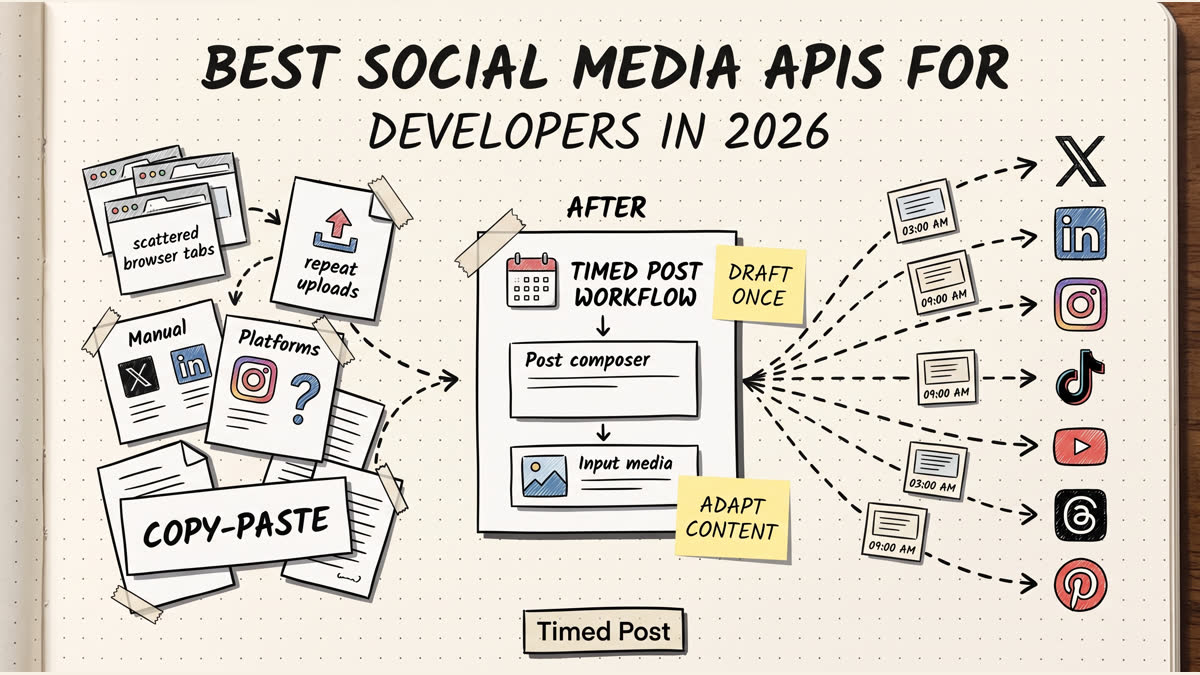
For creators who post consistently or manage multiple platforms, a scheduling tool changes everything. You're not copy-pasting into each platform individually. You write once, schedule once, and move on. Timed Post in particular is built for this, letting you format your post, preview it, and schedule it across channels without rebuilding the formatting each time.
Formatting and LinkedIn's Algorithm
People often ask whether formatting directly affects reach. The honest answer is: indirectly.
LinkedIn's algorithm ranks posts based on:
- Engagement in the first 60-90 minutes (likes, comments, shares)
- Time spent reading (dwell time)
- Comment quality and conversation depth
- Relationship between poster and viewer
Formatting doesn't get you a direct algorithmic boost. But it does increase dwell time and engagement, both of which do. A post people actually read all the way through outperforms a post they skim and scroll past. That's the connection.
The algorithm is watching behavior. Formatting improves behavior. Reach follows.
Frequently Asked Questions
Q: Can I format text in LinkedIn comments? Yes. The same keyboard shortcuts work in comments: Ctrl+B for bold, Ctrl+I for italic, Shift+Enter for line breaks. A formatted comment in an active thread gets noticed. It shows you put thought into your response, which builds credibility fast.
Q: Why doesn't my formatting show up after I post? This almost always happens when you copy text from an external app like Word, Notion, or Google Docs. LinkedIn strips incoming formatting. Type or paste as plain text first, then apply bold and italic directly in LinkedIn's composer.
Q: Can I use underline on LinkedIn? No. LinkedIn doesn't support underline formatting. Your only text style options are bold, italic, and bold-italic combined. If you need to emphasize something, bold is the way to go.
Q: Do formatted posts actually get more reach? Not from formatting alone, but yes in practice. Formatting makes posts easier to read, which increases how long people spend on them. More time spent reading leads to more engagement. More engagement leads to more reach. The formatting isn't magic; it just removes the friction that stops people from reading.
Q: Can I format LinkedIn direct messages? You've got limited options in DMs. Asterisks around text (like this) create italics in some message views, but bold doesn't reliably work. Line breaks work with Shift+Enter. If formatting is important to what you're sending, consider sharing it as a post and linking to it instead.
Q: Why does LinkedIn keep removing my line breaks? LinkedIn compresses multiple blank lines into fewer. If you have three or four blank lines in a row, it may reduce them. Keep your spacing to one or two blank lines between sections. If you need a visual separator, put a single character (a period or a short dash) on its own line.
Q: Can I use special characters and symbols for visual formatting? Yes, and this is an underused trick. Bullet points (•), arrows (->), checkmarks (✓), and other Unicode characters all work. They're not technically "formatting," but they add visual structure and variety. Keep a running list of useful characters in your notes app so you can paste them quickly.
Q: Does formatting work the same way on LinkedIn company pages? Yes. Company page posts support the same formatting as personal posts: bold, italic, line breaks, and bullet characters. Use Ctrl+B and Ctrl+I exactly as you would on a personal account. The mobile toolbar works the same way too.
Q: Can I save formatted post templates somewhere? Not inside LinkedIn natively. LinkedIn doesn't have a built-in template system. But you can save formatted drafts in a notes app or tool like Notion, just remember that pasting them into LinkedIn will strip the formatting. You'll need to re-apply it after pasting. Some scheduling tools like Timed Post let you save draft templates with formatting already set up, which saves real time if you reuse content formats often.
Q: Will scheduling tools mess up my formatting? Modern tools that are built specifically for LinkedIn (like Timed Post) preserve formatting correctly. Older or more generic tools can strip it. Always preview your scheduled post before it publishes to catch any issues. A 10-second check before a post goes live is worth it.
Key Takeaways
- Bold on desktop: Highlight text, then press Ctrl+B (Windows) or Cmd+B (Mac)
- Italic on desktop: Highlight text, then press Ctrl+I (Windows) or Cmd+I (Mac)
- Bold on mobile: Long-press to select text, then tap Bold in the formatting menu
- Line breaks: Shift+Enter creates a new line; Enter creates a full paragraph break
- Bullet points: Paste a bullet character (•) at the start of each line
- Lead with your strongest point before any formatting kicks in
- Bold main ideas only, not filler words or random phrases
- Use lists when you have multiple items of equal importance
- Spacing matters as much as the formatting itself
- Always check your post after publishing to confirm formatting transferred correctly
- Mobile is easier for formatting and represents how most readers see your content
Formatting won't save a bad post. But it will make a good post perform significantly better. The people getting traction on LinkedIn aren't writing better ideas than you. A lot of the time, they're just presenting them in a way that's easier to engage with.
Start with one change: break your next post into short sections with a blank line between each one. That's it. See what happens to engagement. Then build from there.
Posting across LinkedIn, Instagram, X, and more? Timed Post lets you format once and schedule across every platform. No copy-paste, no reformatting, no wasted time. Get started free.