Quick answer
Yes, you can schedule Instagram posts in 2026.
You have three practical options:
| Method | Best for | Main limitation |
|---|---|---|
| Instagram app | simple native scheduling | mainly Instagram-only workflow |
| Meta Business Suite | free scheduling for Facebook + Instagram | can feel clunky for teams and multi-platform campaigns |
| Timed Post | posting Instagram as part of a wider social calendar | best when you also post on X, LinkedIn, TikTok, YouTube, Threads, Facebook, or Pinterest |
If you only post to Instagram, the native tools may be enough.
If Instagram is one part of a bigger content workflow, use a scheduler so you are not copying the same campaign into every platform manually.
Before you schedule: check your account type
Instagram scheduling works best when you use a professional setup.
For third-party publishing, Meta's Instagram Content Publishing docs say the API can publish single images, videos, reels, and carousel posts to Instagram professional accounts. Meta also notes a few real limits: media must be publicly accessible at publish time, some image formats and filters are not supported, and API-published posts are limited to 100 posts per Instagram account in a 24-hour moving period.
That sounds technical, but the takeaway is simple:
If you want reliable scheduling through a tool, connect the right Instagram account type and test one post before loading a full calendar.
Method 1: schedule inside Instagram
Use this if you only need basic Instagram scheduling and you are not managing a larger calendar.
Basic workflow:
- Create your post, reel, or carousel in Instagram.
- Add caption, location, tags, and settings.
- Choose the scheduling option before publishing.
- Pick the date and time.
- Review the scheduled post inside Instagram.
This is fine for solo Instagram posting.
The problem starts when the same campaign also needs to go to LinkedIn, X, Facebook, Threads, TikTok, YouTube Shorts, or Pinterest. Then you are rebuilding the same post over and over.
Method 2: schedule with Meta Business Suite
Meta Business Suite is useful if your main workflow is Facebook + Instagram.
Basic workflow:
- Open Meta Business Suite.
- Choose the Instagram account or connected Page.
- Create a post, reel, or story depending on what is available for your account.
- Add media and caption.
- Choose the schedule option.
- Pick the date and time.
- Check the planner/calendar view.
Use Meta Business Suite when you want a free native route and your content mostly lives inside Meta platforms.
Skip it when your weekly workflow is bigger than Meta. If you are also publishing to X, LinkedIn, TikTok, YouTube, Threads, or Pinterest, you will still need another system for the rest of the calendar.
Schedule your posts across every platform
Draft once, publish everywhere — automatically.
No credit card · Cancel anytime
Method 3: schedule Instagram with Timed Post
Use Timed Post when Instagram is one channel in a multi-platform content system.
A normal campaign might look like this:
- Instagram carousel
- LinkedIn founder post
- X short post
- Threads conversation starter
- TikTok/Reel/Shorts video
- Facebook post
- Pinterest pin
The idea is the same, but the format is different.
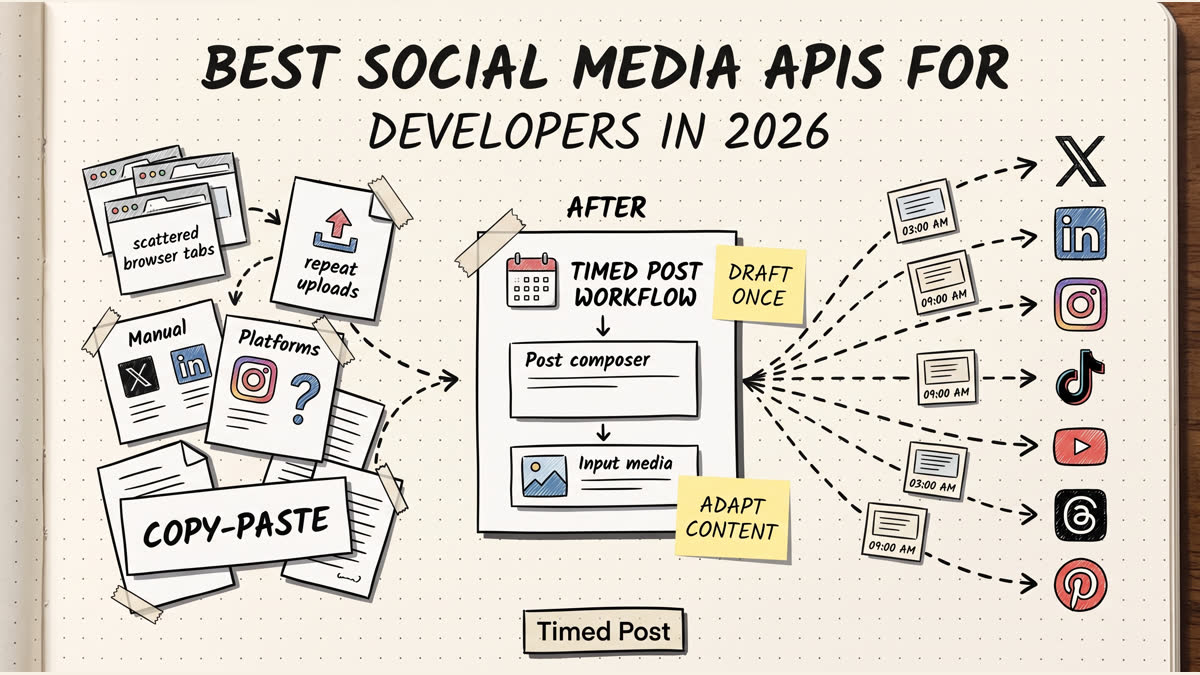
Timed Post helps you draft once, adapt the post for each platform, then schedule the calendar without opening every app.
Basic workflow:
- Connect your Instagram account in Timed Post.
- Create a new post or upload a batch.
- Add the Instagram caption and media.
- Adjust the post for other platforms if needed.
- Pick the date and time.
- Review the calendar.
- Schedule.
If you plan content in batches, combine this with bulk scheduling so you can load a week or month of content in one focused session.
What can you schedule on Instagram?
Instagram scheduling can cover several formats, but support depends on your account setup and the tool you use.
Common formats:
| Format | Scheduling notes |
|---|---|
| feed posts | usually the easiest to schedule |
| carousels | supported by many workflows, but check media order before scheduling |
| reels | check cover, caption, and video specs |
| stories | support depends on the tool/workflow |
| collaborations/tags | not always supported in every scheduler |
Before you schedule a large batch, test each format once.
Do not discover a missing reel setting after you already uploaded 40 posts.
Best times to schedule Instagram posts
A good starting point for Instagram in 2026 is Monday through Thursday during midday and afternoon windows.
Sprout Social's 2026 timing data found strong Instagram engagement windows like:
| Day | Strong Instagram windows |
|---|---|
| Monday | 2-4 p.m. |
| Tuesday | 1-7 p.m. |
| Wednesday | 12-9 p.m. and 11 p.m. |
| Thursday | 12-2 p.m. |
| Weekends | usually weaker |
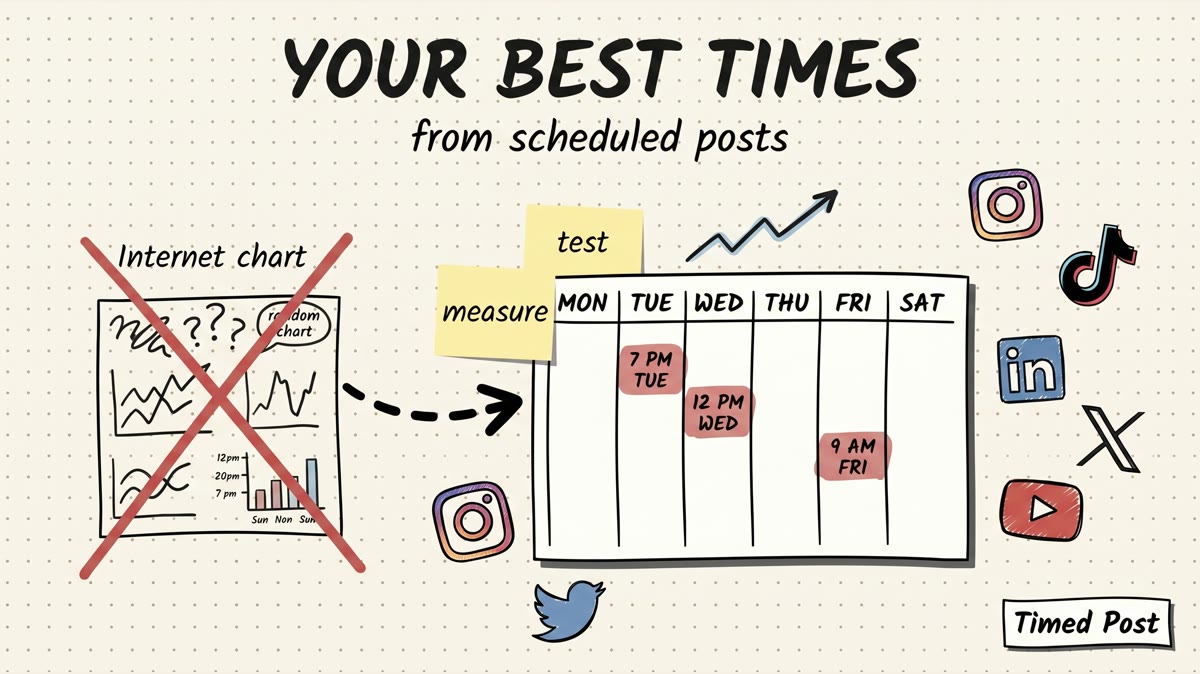
Use those times as a benchmark, then test your own account.
A fitness creator, a local restaurant, a B2B SaaS, and a meme page will not have identical peak times.
A simple weekly Instagram scheduling workflow
Here is a clean workflow for creators, founders, and small teams:
Monday: plan the week
Pick 3-5 content ideas.
Do not start inside Instagram. Start with the ideas:
- one useful tip
- one behind-the-scenes post
- one proof/result post
- one opinion or founder note
- one CTA or offer post
Tuesday: create the assets
Make the carousel, image, or video assets.
Keep file names obvious so you do not attach the wrong creative later:
monday-founder-note.jpg
tuesday-feature-demo.mp4
wednesday-carousel-slide-01.png
Wednesday: write captions
Write the Instagram caption, then adapt the idea for other platforms.
Instagram captions can carry more context than X, but they still need a clean first line. Avoid starting with vague filler like "social media moves fast."
Say the thing directly.
Thursday: schedule and review
Schedule the posts, then check the calendar view.
Look for:
- posts too close together
- missing media
- wrong account
- repeated captions
- links that do not work
- posts still marked as draft
- placeholders like
caption TBD,missing link, orimage goes here
Friday: reply and learn
Scheduling is not the end.
Check comments, saves, shares, profile visits, and DMs. Use that feedback to decide what to repeat next week.
Instagram scheduling checklist
Before you schedule, check this:
- media opens correctly
- video length and crop are right
- carousel slides are in the right order
- caption has a strong first line
- hashtags are relevant, not spammy
- location/tag settings are correct
- timezone matches the audience
- post is assigned to the right account
- scheduled time fits your test window
- any client or team approval is done
This is where a scheduler helps. You can review the calendar calmly instead of posting from your phone while distracted.
Common scheduling problems and fixes
The post fails to publish
Check the basics first:
- Is the Instagram account connected correctly?
- Is the media URL accessible?
- Is the file type supported?
- Is the post format supported by your tool?
- Did the account hit a publishing or platform limit?
For technical API workflows, Meta's docs note that Instagram media must be accessible publicly at publish time. If the file is private, expired, or blocked, publishing can fail.
The crop looks wrong
Create platform-specific versions of the asset.
A square carousel, vertical reel, and link-preview image should not all use the same crop. If you publish to multiple platforms, this is one of the easiest ways to make good content look sloppy.
The caption feels copied from another platform
This happens when teams repurpose content too literally.
A LinkedIn post can be reflective. An X post can be blunt. Instagram needs the visual to carry more weight. Keep the core idea, but rewrite the first line for Instagram.
The scheduled calendar looks too crowded
Space posts by account and format.
If you are scheduling Instagram plus other platforms, check the full content calendar instead of only the Instagram queue. You may be accidentally posting the same idea everywhere at the same time.
Native scheduling vs a social media scheduler
Use native Instagram scheduling when:
- you post only to Instagram
- you do not need client approvals
- you do not batch many posts
- you do not care about a multi-platform calendar
Use a scheduler when:
- you post to 3+ platforms
- you manage several accounts
- you batch content weekly or monthly
- you need a review step before posts go live
- you want analytics and planning in one place
If you are still deciding, read does Instagram allow scheduling posts natively? and best Instagram schedulers in 2026.
How Timed Post fits into Instagram scheduling
Timed Post is not just for pushing one Instagram post into the future.
It is for turning a content batch into a real calendar across 8 platforms.
That matters when your workflow looks like this:
- write the core idea once
- turn it into Instagram, X, LinkedIn, Threads, Facebook, TikTok, YouTube Shorts, and Pinterest versions
- schedule everything
- reply later without falling into the scroll trap
Useful next reads:
- Best time to post on Instagram
- Instagram video length limits
- Best multi-platform social media scheduler
- Social media workflows that cut your workload in half
Final takeaway
If you only need basic Instagram scheduling, native tools are fine.
If Instagram is one piece of a bigger content calendar, use Timed Post. Draft the campaign once, adjust each platform version, schedule the batch, and stop rebuilding the same post in every app.
Start a free trial and schedule your next Instagram batch before you open the feed.