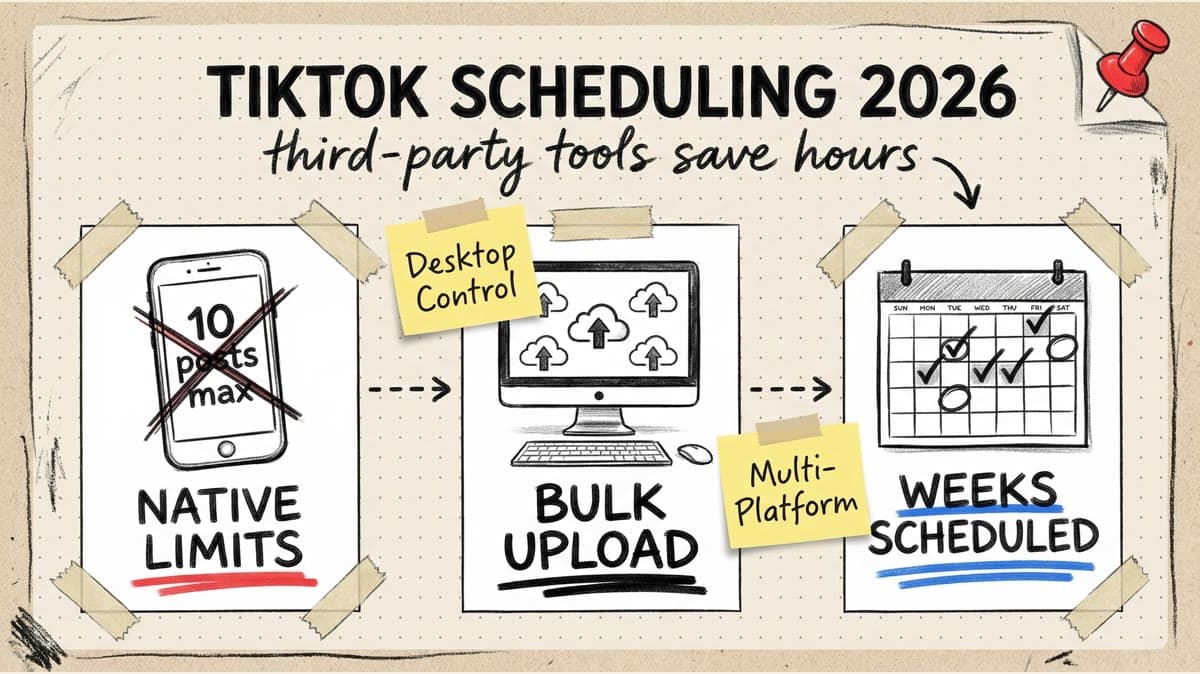
TikTok's native app doesn't make scheduling easy. You can only schedule up to 10 posts at a time, and every single one requires manual configuration through the mobile app. For creators posting daily or managing multiple accounts, this quickly becomes a productivity bottleneck.
Third-party schedulers solve this by letting you bulk upload videos, customize captions and settings once, and schedule weeks of content from your desktop — no phone required.
This guide covers how TikTok scheduling works in 2026, what tools support it, and how to set up an efficient workflow that saves hours every week.
Why TikTok's Native Scheduling Falls Short
TikTok added native scheduling in 2022, but the feature remains limited compared to Instagram or YouTube's built-in tools.
The 10-post limit
TikTok caps scheduled posts at 10 videos. Once you hit that limit, you have to wait for posts to publish before scheduling more. This makes planning a month of content impossible without constant check-ins.
Mobile-only workflow
You can only schedule posts through the TikTok mobile app. Desktop users have to upload videos to their phone, configure settings on a small screen, and repeat the process for every single post. There's no bulk scheduling interface.
No cross-platform scheduling
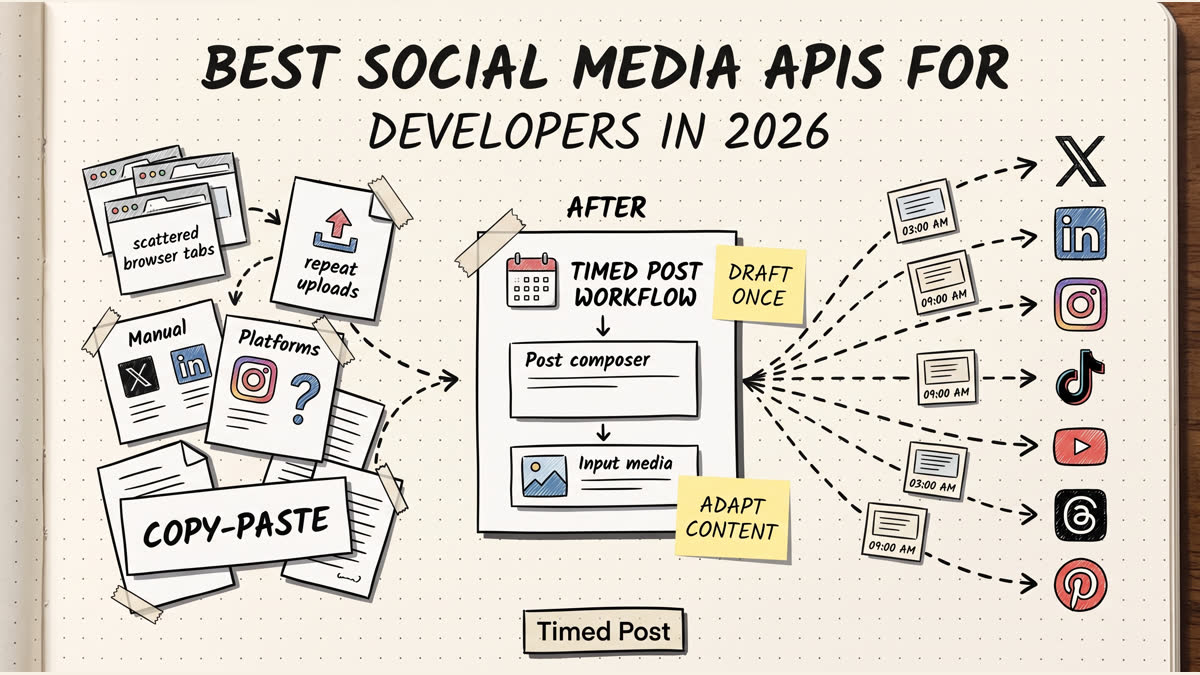
If you're posting the same video to TikTok, Instagram Reels, and YouTube Shorts, you need to schedule each platform separately. Native tools don't support multi-platform publishing.
Limited collaboration
TikTok for Business lets teams schedule posts, but it requires a business account and doesn't support approval workflows or role-based permissions. Agencies managing client accounts need more control.
For creators posting 3-7 times per week or managing multiple brands, these limitations add up to hours of manual work every month.
How Third-Party TikTok Schedulers Work
Third-party schedulers use TikTok's official Content Posting API to publish videos on your behalf. Unlike bots or automation hacks, these tools are authorized by TikTok and follow platform guidelines.
The publishing flow
- You upload videos and write captions in the scheduler's dashboard
- The tool stores your content and metadata
- At the scheduled time, it uses the API to post directly to your TikTok account
- The video goes live with your exact settings — no manual approval needed
What you can customize
Most schedulers let you set:
- Caption text (up to 2,200 characters)
- Privacy settings (Public, Friends, Private)
- Comment, Duet, and Stitch permissions
- Disclosure settings for branded content
- First comment (for links or CTAs)
API limitations to know
TikTok's API has posting caps to prevent spam:
- Creator cap: Most schedulers can support 5-15 posts per day per account
- 24-hour active creator cap: Each API client has a daily user limit based on their usage tier
- Private account restriction: Unverified API clients can only post to private accounts
Verified schedulers (like Timed Post, Buffer, and Later) have undergone TikTok's audit process, which lifts the private-only restriction and increases posting limits.
Best TikTok Schedulers in 2026
1. Timed Post — Best for multi-platform posting
Timed Post supports TikTok scheduling alongside Instagram, YouTube, LinkedIn, X, Facebook, and Threads — all from one calendar. The bulk scheduling interface lets you upload up to 20 videos at once, customize platform-specific settings, and preview exactly how posts will look before publishing.
Key features:
- Schedule to 7 platforms including TikTok
- Bulk upload up to 20 videos
- AI caption generator
- First comment scheduling
- Workspace separation for clients/brands
- Drag-and-drop calendar
Pricing: $19/month Starter (5 accounts) | $49/month Growth (15 accounts) | $49/month early-bird Premium ($79 normal, unlimited accounts)
Best for: Creators and agencies posting the same content across TikTok, Reels, and Shorts.
2. Later — Best for visual planning
Later's drag-and-drop calendar makes it easy to visualize your TikTok content schedule alongside Instagram and other platforms. The grid preview helps you plan posting frequency and content mix.
Pricing: $25/month (8 profiles)
Best for: Visual planners who want to see their content layout before scheduling.
3. Buffer — Best for simplicity
Buffer keeps TikTok scheduling simple with a clean interface and straightforward publishing workflow. No learning curve, just upload and schedule.
Pricing: $6/channel/month
Best for: Solo creators who want basic scheduling without extra features.
4. Hootsuite — Best for enterprise teams
Hootsuite supports TikTok scheduling with team collaboration, approval workflows, and analytics dashboards. Expensive but feature-complete for large teams.
Pricing: $249/user/month
Best for: Enterprise marketing teams managing multiple TikTok accounts with approval processes.
How to Schedule TikTok Videos (Step-by-Step)
Here's how to set up TikTok scheduling using Timed Post as an example. The workflow is similar across most schedulers.
Step 1: Connect your TikTok account
- Sign up for a scheduler that supports TikTok (Timed Post, Later, Buffer, etc.)
- Navigate to the account connection page
- Click "Connect TikTok"
- Authorize the app to post on your behalf
- Your TikTok profile appears in the connected accounts list
Step 2: Upload your videos
- Open the content calendar or upload interface
- Click "Create Post" or "Bulk Upload"
- Select your TikTok videos from your computer (MP4 or MOV format)
- The scheduler uploads and processes the files
Pro tip: For multi-platform posting, upload once and select TikTok + Instagram Reels + YouTube Shorts. The scheduler handles platform-specific formatting automatically.
Step 3: Customize post settings
For each video, configure:
- Caption: Write your hook and hashtags (max 2,200 characters)
- Privacy: Choose Public, Friends, or Private
- Interactions: Enable/disable Comments, Duet, and Stitch
- Disclosure: Mark branded content if applicable
- First comment: Add a pinned comment with links or CTAs
TikTok requirement: Privacy and interaction settings must be manually selected (no defaults allowed). This prevents accidental private posts or disabled engagement.
Step 4: Choose your posting time
- Manual scheduling: Pick a specific date and time
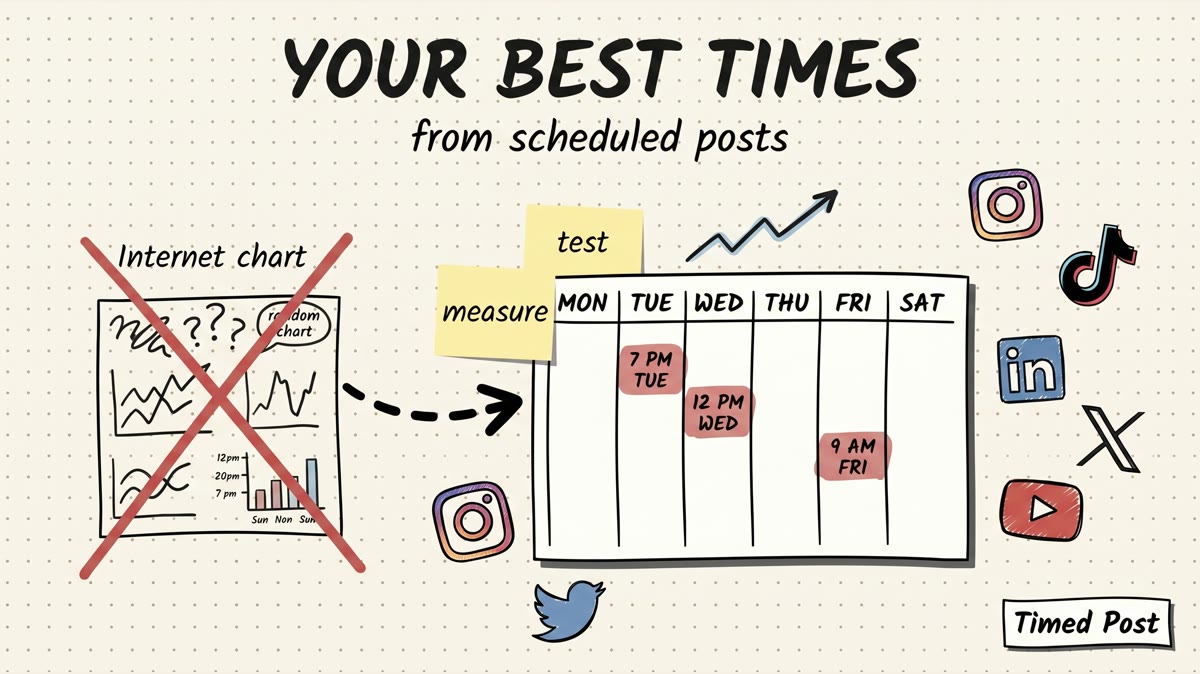
- Best time to post: Some schedulers suggest optimal times based on your audience activity
- Bulk scheduling: Upload 20 videos and space them out over 2-4 weeks
Step 5: Review and publish
Preview how your post will look on TikTok. Check:
- Video thumbnail
- Caption formatting
- Hashtag placement
- Privacy settings
Once confirmed, hit "Schedule" or "Publish Now." The scheduler handles the rest.
Step 6: Monitor performance
After posts go live, check your scheduler's analytics dashboard to track:
- Views and engagement per video
- Best-performing posting times
- Content type performance (tutorials vs. behind-the-scenes, etc.)
Use this data to refine your content calendar for next month.
Timed Post
Schedule your posts across every platform
Draft once, publish everywhere — automatically.
No credit card · Cancel anytime
Schedule your posts across every platform
Draft once, publish everywhere — automatically.
No credit card · Cancel anytime
Bulk Scheduling Workflow for Efficiency
If you're posting 5-7 times per week, bulk scheduling saves hours. Here's the workflow:
1. Batch content creation (1-2 hours)
Record and edit 10-20 TikTok videos in one session. This focuses your creative energy and reduces setup time.
2. Bulk upload to scheduler (15 minutes)
Upload all videos at once. Select TikTok (and any other platforms you're targeting).
3. Write captions in batches (30 minutes)
Write all captions in a single session using a consistent format:
- Hook (first line)
- Value or story (middle)
- CTA (end)
- Hashtags (3-5 relevant tags)
Copy-paste caption templates to speed this up.
If captions are the part that slows the batch down, keep a swipe file of TikTok caption ideas beside the scheduler before you upload the videos.
4. Space posts across your calendar (10 minutes)
Use the drag-and-drop calendar to distribute videos evenly:
- 1 video/day = 20 days of content
- 2 videos/day = 10 days of content
5. Set it and forget it
Once scheduled, your TikTok posts publish automatically. Check in weekly to monitor performance and adjust posting times if needed.
Time comparison:
- Manual TikTok app posting: 5-10 minutes per video × 20 videos = 100-200 minutes
- Bulk scheduler workflow: 55 minutes total
That's a 65-80% time reduction.
Common TikTok Scheduling Mistakes to Avoid
1. Defaulting privacy to "Only me"
TikTok's API requires manual privacy selection to prevent accidental private posts. Always confirm "Public" is selected before scheduling.
2. Forgetting interaction settings
Comments, Duet, and Stitch must be manually enabled. Leaving them disabled limits engagement and algorithm reach.
3. Not disclosing branded content
If you're promoting a product or brand, TikTok requires disclosure. Check the "Branded content" box or your post may be removed.
4. Uploading videos in the wrong format
TikTok supports MP4 and MOV files with 9:16 aspect ratio (vertical video). Horizontal videos get cropped or rejected.
5. Exceeding the video duration limit
The API enforces a max video length based on your account tier (typically 3-10 minutes). Check your scheduler's creator info before uploading long videos.
6. Scheduling without checking posting caps
Most schedulers cap TikTok posts at 10-15 per day per account. Scheduling 30 videos for next week won't work if your daily limit is 10.
Multi-Platform Strategy: TikTok + Reels + Shorts
The same vertical video can perform on TikTok, Instagram Reels, and YouTube Shorts. Multi-platform posting maximizes ROI on every video you create.
How to repurpose efficiently
- Create one vertical video optimized for TikTok
- Use a scheduler that supports all three platforms (Timed Post, Later, Buffer)
- Upload once and select TikTok + Instagram + YouTube
- Customize captions for each platform (TikTok hashtags differ from Instagram)
- Schedule for optimal times on each platform
Platform-specific optimization
TikTok:
- Hook in the first 3 seconds
- Trending audio boosts reach
- 3-5 hashtags max
Instagram Reels:
- 5-10 hashtags for discovery
- Add location tags
- Use Instagram-specific trending audio
YouTube Shorts:
- Strong thumbnail (Shorts browse mode)
- Keyword-rich title
- No hashtags needed
A good scheduler previews exactly how your video will appear on each platform before publishing.
TikTok Analytics: What to Track
Most schedulers include analytics dashboards that pull data from TikTok's API. Focus on these metrics:
Engagement rate
Views, likes, comments, and shares per video. High engagement signals the algorithm to push your content to more users.
Average watch time
TikTok rewards videos that keep viewers watching. If your average watch time is low, your hooks need work.
Best posting times
Track when your audience is most active. Scheduling during peak hours increases initial engagement, which boosts algorithm performance.
Content type performance
Compare performance across content formats:
- Tutorials
- Behind-the-scenes
- Trends/challenges
- Product showcases
Double down on what works.
FAQ
Can I schedule TikTok posts for free?
TikTok's native app offers free scheduling with a 10-post limit. Third-party schedulers like Buffer and Timed Post offer free trials but require paid plans for ongoing use.
Do scheduled TikTok posts perform worse than manual posts?
No. TikTok's algorithm treats API-published posts the same as manually uploaded videos. Performance depends on content quality, not publishing method.
Can I schedule TikTok Stories?
Not yet. TikTok's API doesn't support Story scheduling as of 2026. Stories must be posted manually through the app.
What happens if my scheduled post fails?
Most schedulers notify you via email or in-app alert if a post fails. Common causes: account disconnected, API rate limit exceeded, or video format issue. Re-authenticate your account or adjust the post settings to retry.
Can I schedule the same video to TikTok and Instagram Reels?
Yes. Multi-platform schedulers let you upload once and publish to TikTok, Instagram, and YouTube simultaneously. Customize captions for each platform for best results.
Final Thoughts
TikTok's native scheduling works for casual creators posting a few times per week. But if you're serious about growth, managing multiple accounts, or posting across platforms, a third-party scheduler saves hours and eliminates manual work.
The best workflow:
- Batch-create 10-20 videos in one session
- Bulk upload to a scheduler like Timed Post
- Customize captions and settings
- Space posts across your calendar
- Monitor analytics and adjust strategy
This turns 3+ hours of weekly posting into a single 60-minute session — freeing up time to actually create content, engage with your audience, and grow your brand.
Try Timed Post free and schedule your first batch of TikTok videos today.