You're scrolling through your Instagram profile and cringe. That post from 2019? Doesn't fit your brand anymore. That blurry selfie from a random Tuesday? What were you thinking?
You want to clean up your profile, but deleting posts feels wrong. What if you want to revisit them later? What if deleting breaks the narrative of your feed?
Instagram's archive feature solves this problem. You can hide posts from your public profile without permanently deleting them. They're still yours, still accessible, just not visible to followers.
This is surprisingly useful for:
- Cleaning up old branding or messaging that no longer fits
- Hiding posts that underperformed
- Removing posts during a rebrand (without losing them)
- Experimenting with different content styles without polluting your main feed
In this guide, I'll show you how to archive posts, how to unarchive them, and when it makes sense to archive vs. delete.
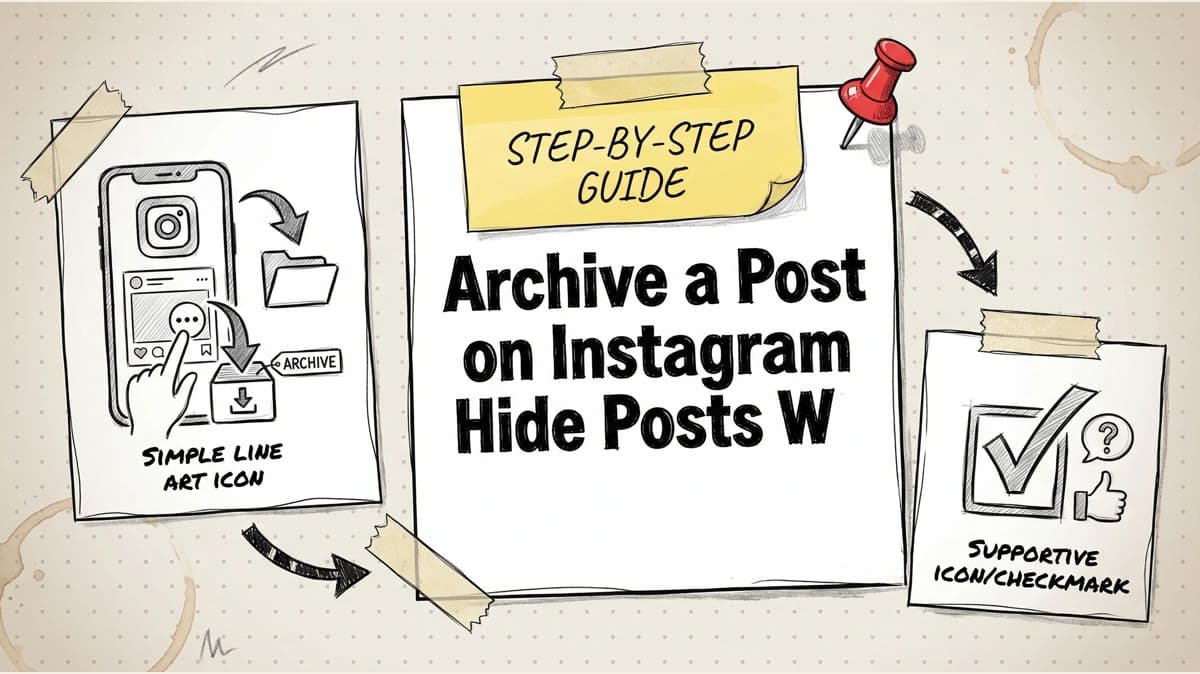
How to Archive a Post on Instagram (Quick Method)
Archiving a post takes literally 5 seconds.
Step 1: Find the Post
Go to your Instagram profile and find the post you want to archive.
Step 2: Click the Menu Button
- Click the three dots (⋯) in the top right corner of the post
- A menu will appear with options
Step 3: Select "Archive"
- Click "Archive"
- The post immediately disappears from your public profile
- You'll see a confirmation message: "Post archived"
That's it. The post is now hidden.
How to Unarchive a Post (Get It Back)
Changed your mind? Unarchiving is just as quick.
Step 1: Access Your Archive
- Go to your Instagram profile
- Click the menu icon (three horizontal lines) in the top right
- Select "Archive"
- Click "Posts" (your archived posts will appear)
Step 2: Select the Post You Want to Restore
- Find the post you want to unarchive
- Click the three dots menu on that post
- Select "Show on profile" (or sometimes just "Unarchive")
Your post immediately reappears on your profile in its original position (or at the top if it's been a while).
What Gets Archived vs. What Stays Public
What can be archived:
- Feed posts (photos and captions)
- Carousel posts (multiple photos/videos)
- Video posts
- Reels (they move to a separate Reels folder but follow the same logic)
- Stories (have their own separate archive, explained below)
What stays public:
- Comments you've made on other posts (only you can see these were made)
- Likes (your likes can be hidden, but through a separate setting)
- Your follower/following lists (can't be archived)
- Messages (can be archived in a separate DM archive)
Instagram Stories Archive (Separate Feature)
Stories have their own archive system because they disappear after 24 hours anyway.
How to Archive a Story:
- Click the three dots on your Story (before it disappears)
- Select "Archive"
- Your Story moves to your "Archive" folder (only visible to you)
How to View Archived Stories:
- Go to your profile
- Click the menu icon → "Archive"
- Click "Stories" to see all archived Stories
Archived Stories are completely private. No one else can see them, and they don't count toward your visible Story activity. This is useful if you want to keep Stories for personal nostalgia or reference without them cluttering your profile.
Schedule your posts across every platform
Draft once, publish everywhere — automatically.
No credit card · Cancel anytime
When to Archive vs. Delete
This is important: archiving and deleting are different decisions.
Archive When:
- You might want to use it again — archived posts are easy to restore
- You're unsure — you can always unarchive later if you change your mind
- You're testing a new brand direction — archive the old posts, test new content, then unarchive the old stuff if you change your mind
- The post underperformed — hide it, but keep it for reference
- You're temporarily removing content for a rebrand — archive, rebrand, then selectively restore
- The post is sensitive or personal — hide it without losing it
Delete When:
- You're absolutely certain — deleting is permanent
- You need a clean break — you want this content gone from your life
- The post violates your values — especially important for public profiles
- You don't want any trace — archiving isn't secure; the post is still tied to your account
Important: Deleting a post also deletes all its comments and likes. Archiving preserves all of that data.
Strategic Reasons to Archive Content
Rebrand Without Losing History
Say you're pivoting from fitness coaching to business coaching. Your old fitness posts don't fit the new brand.
Option 1: Delete
- New visitors see only business content ✓
- But your history is gone ✗
Option 2: Archive
- New visitors see only business content ✓
- You keep the old posts for reference ✓
- If asked about your fitness background, you can share an old post ✓
Best practice: Archive old content during a rebrand instead of deleting.
Hide Underperforming Posts
If a post got very few likes or engagement, archiving hides it without damaging it. Later, you can:
- Analyze why it underperformed
- Repost it with better timing/better caption
- Delete it permanently if it was truly bad
Maintain a Cohesive Feed
Instagram is visual. If your feed has 50 posts and 5 of them are visually inconsistent (bad lighting, different aesthetic), archiving those 5 cleans up the look without deleting them.
Visitors see a cohesive, intentional feed. But you still have access to the original posts if you need them.
A/B Test Content Styles
Want to test a new posting style?
- Archive your old posts
- Post 10 new posts in the new style
- Wait a week and analyze engagement
- If the new style performs better, keep them archived and continue the new direction
- If the old style was better, unarchive your old posts and return to that style
This lets you experiment without permanently changing your profile.
Important Things to Know About Archiving
Archiving Doesn't Hide Your Engagement
If you commented on someone else's post, archiving a post you made doesn't hide that comment. People can still find your comments on other posts.
If you want to hide your engagement with other people's content, you'll need to delete the comment directly.
Archiving a Post Doesn't Affect DMs
If someone sent you a DM mentioning your archived post, they can still see the post (it's archived from your profile, not from their view). They can still see it in your DM history.
Archived Posts Still Show Up in Saved Collections
If someone saved your post before you archived it, the post still shows in their Saved collection, and they can still view it. Archiving only hides it from your profile.
You Can Archive Multiple Posts at Once
If you have a bunch of posts to archive, you can:
- Click on your first post's menu
- Archive it
- Repeat for each post
There's no bulk archive feature, so this takes time if you're archiving many posts. Plan ahead.
How Archiving Affects Your Instagram Analytics
Good news: Archiving doesn't delete your analytics.
Even after archiving a post, you can still view its:
- Impressions
- Reach
- Engagement
- Saves
- Shares
- Clicks to your website
Go to Instagram Studio → Insights → Content, and you can see metrics for archived posts.
Frequently Asked Questions
Q: Can other people see my archived posts? A: No. Archived posts are completely hidden from your public profile. Only you can see them when you access your Archive folder. However, if someone saved your post before you archived it, they can still view it in their Saved collection.
Q: Do archived posts lose their likes and comments? A: No. Archiving preserves everything—likes, comments, engagement metrics, timestamps. When you unarchive a post, it comes back exactly as it was. Deleting is what removes likes and comments permanently.
Q: Can I archive someone else's post from my feed? A: No. You can only archive your own posts. However, you can hide posts from other accounts by selecting "Not Interested" or unfollowing/muting that account.
Q: Does archiving affect my follower count or engagement rate? A: No. Archiving posts doesn't change your follower count. It might slightly adjust your overall engagement rate calculation (since you're hiding lower-performing posts), but Instagram's public metrics don't recalculate based on archived content.
Q: Can I archive Reels separately from regular posts? A: Yes. When you go to Archive, you'll see separate tabs for Posts, Stories, and Reels. Each type of content has its own archive folder, so you can manage them independently.
Q: How long do archived posts stay in my archive? A: Forever, unless you delete them. Instagram doesn't auto-delete archived posts. They stay in your archive indefinitely until you either restore them or permanently delete them.
Q: Can I bulk archive or delete posts on Instagram? A: No, Instagram doesn't have a native bulk archive or delete feature. You have to archive or delete posts one by one. However, third-party tools like Cleaner for Instagram or Mass Delete for Instagram can help with bulk actions (use with caution—always backup first).
Q: Will archiving old posts hurt my Instagram algorithm ranking? A: No. Instagram's algorithm focuses on recent engagement and content quality. Archiving old posts doesn't negatively affect your current reach or ranking. In fact, maintaining a cohesive, high-quality feed (by archiving inconsistent content) might improve your profile's overall appeal.
Q: Can I download my archived posts before deleting them permanently? A: Yes. Go to Settings → Security → Download Data, and Instagram will send you a copy of all your posts (including archived ones) within 48 hours. This is a good backup strategy before deleting anything permanently.
Q: What happens if I archive a post that's been shared or embedded elsewhere? A: If someone shared your post via Instagram's sharing feature, the link will break (they'll see "Post not available"). If your post was embedded on a website, the embed will also break. Unarchiving restores those links.
Key Takeaways
- Archive takes 5 seconds: Find post → Click three dots → Select "Archive"
- Unarchiving is just as quick: Go to Archive → Find post → Click "Show on profile"
- Archiving preserves all data — comments, likes, engagement metrics all stay
- Archive when unsure or rebranding; delete when certain
- Use archiving to maintain a cohesive feed without losing your history
- Archived posts remain in your analytics for future reference
- Test new content strategies by archiving old content and analyzing which approach performs better
Archiving is your way of saying "not now" instead of "never." Use it strategically to clean up your profile while keeping your options open.
Stop managing Instagram manually. Use Timed Post to schedule posts, analyze what works, and maintain a consistent feed across Instagram and 7 other platforms. Try free.